> ## Documentation Index
> Fetch the complete documentation index at: https://docs.metabind.ai/llms.txt
> Use this file to discover all available pages before exploring further.
# Project setup
> Configure project type, visibility, AI instructions, and server metadata before building tools
A Metabind project is the tenant boundary for your MCP App. Every tool, component, package, and asset belongs to a project, and the project owns the production and draft MCP server endpoints. Before you build tools, set up the project so the platform serves the right thing to the right callers.
## Project type
Every project has a `type` field that drives the MCP App Studio experience:
| Type | What it surfaces | When to use |
| --------- | --------------------------------------------------------------------------------------------------------------------- | ------------------------------------------------------------------------------------------------------------------------------------------------------------------------------------------------------------------------- |
| `mcp` | Tool management, testing, MCP server endpoints. Per-Type publish, status badges, the Connect tab. | You're building an MCP App — Interactive Tools, Data Tools, the Assistant SDK embed. The default for new MCP App projects. |
| `content` | Content editing, visual preview, streamlined publishing. Headless-CMS workflow centered on Types and Content entries. | You need a managed content store that an MCP App's Data Tool can query — a product catalog, a help-center corpus, an editorial inventory. The Data Tool wraps the Content REST API and surfaces entries to the assistant. |
Both types have access to the same API capabilities — the field controls the UI experience, not the API surface. A common pattern is **two projects working together**: a `content` project for the catalog (managed by a content team), and an `mcp` project whose Data Tool queries the content project's REST API to answer questions.
If you're building an MCP App, start with `type: "mcp"`. You can switch later, but the MCP App Studio sidebar and prompts assume the type is set correctly.
## Project visibility
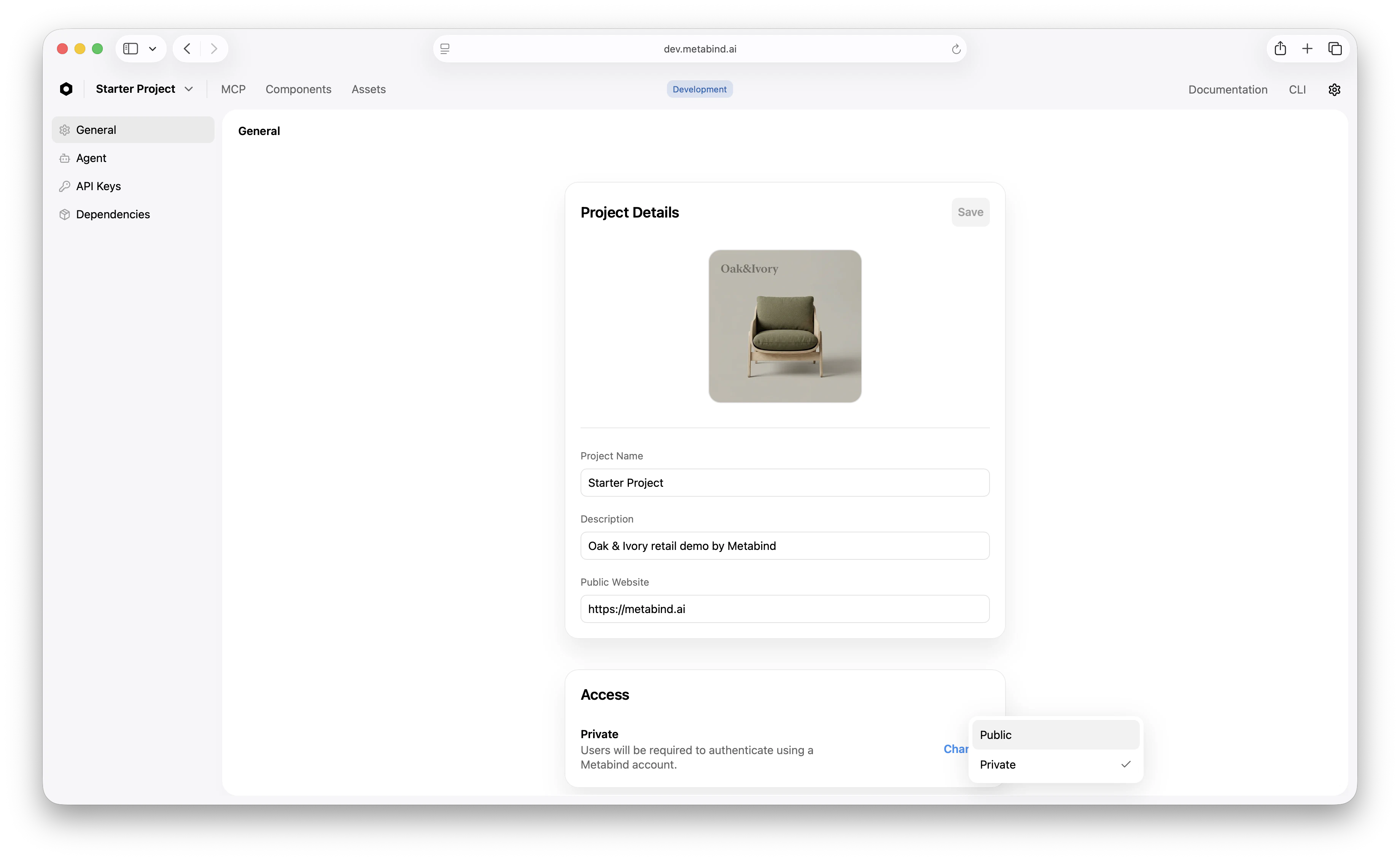
By default, projects are **private**: both the production and draft MCP endpoints require an API key or OAuth SSO. Use private for internal tools, staff assistants, and any project where tool input or output is sensitive.
For projects built for end-user consumption — a retail assistant any customer can add to Claude Desktop, a public demo — set the project to **public**:
```json theme={null}
{
"settings": {
"mcp": {
"visibility": "public",
"publicRateLimit": {
"requestsPerHour": 60,
"burst": 10
}
}
}
}
```
Public visibility only applies to projects where `type: "mcp"`.
| | Private (default) | Public |
| ---------------------- | ------------------------------------------ | ------------------------------------------------ |
| Production endpoint | API key or OAuth required | Anonymous access allowed |
| Draft endpoint | API key or OAuth required | API key or OAuth required (draft never opens up) |
| Tools registered | Published Types + content management tools | Published Types only |
| Sampling / elicitation | Available | Disabled for anonymous sessions |
| Rate limit | Per-client | Per-IP, per-project (configurable) |
A few safeguards worth knowing about:
* **The draft endpoint never opens up to anonymous callers**, regardless of visibility. Unpublished Types stay behind auth.
* **Content management tools are stripped on anonymous sessions** of public projects — they are CMS management surfaces, not end-user tools.
* **Anonymous traffic is rate-limited per client IP per project.** Defaults are 60 requests/hour with burst 10. Override per project via `settings.mcp.publicRateLimit`.
* **A kill switch lets organization admins flip a project back to private** at any time via MCP App Studio or the `/disable-public` endpoint.
For full operational detail (kill-switch playbook, audit-log entries, the API), see [Public and private projects](/guides/operations/project-visibility).
For when to choose public vs. private, see [When to use public visibility](#when-to-use-public-visibility) below.
## Project instructions
The **Instructions** block on the Server tab is sent to the AI as guidance whenever a model connects to your MCP server. This is where you tell the AI:
* What the project's purpose is.
* Behavioral constraints — voice, tone, what the assistant is and isn't.
* Routing rules — *"if the user wants to compare products, use `product_comparison`. If the user wants a single product, use `product_detail`, always with a video if available."*
Instructions matter more than most teams expect. They're the difference between an AI that calls the right tool for the right user goal and one that picks tools at random or describes things in text. Spend time on them.
```
Use these tools to help the user design an interior. You are an expert interior designer.
Our company is called Oak&Ivory.
Always use these tools when the user wants help to design a new lounge room or kitchen
or bedroom.
- If the user wants a very basic list of products viewed, use product_carousel
- If the user wants to compare some inspiration, use product_card_stack plus data
- If the user wants to compare products, use product_comparison
- If the user wants to see a single product, use product_detail, always try and serve
it up with a video if there is one.
- If the user wants to reimagine / design their space with chosen products use
interior_designer
```
Instructions become the MCP `InitializeResult.instructions` field, which the host passes to the model on connect.
## Server metadata
A few project-level fields shape the MCP server's `serverInfo`:
| Field | Maps to | Purpose |
| ------------------------- | ------------------------ | ------------------------------------------------------- |
| `slug` | `serverInfo.name` | The MCP server's identifier (auto-generated, immutable) |
| `name` | `serverInfo.title` | Human-readable project title |
| `description` | `serverInfo.description` | One-sentence description for client display |
| `settings.mcp.version` | `serverInfo.version` | Your project's version string (default: `"1.0.0"`) |
| `settings.mcp.icons` | `serverInfo.icons` | Sized icons for client UIs |
| `settings.mcp.websiteUrl` | `serverInfo.websiteUrl` | Link to your project's site or docs |
These show up in the MCP host UI when a user adds your server. Treat them like app store metadata — they're how someone evaluating whether to install your MCP App will recognize it.
## When to use public visibility
**Good fit:**
* Retail product research or shopping assistants any customer can add to Claude.
* Documentation-style tools over publicly published content.
* Public demos of an MCP server.
* Marketing tools where the data and UI are already public.
**Poor fit:**
* Tools that proxy private data (customer records, internal inventory, transaction history).
* Tools whose data components carry API keys with broad scopes — anonymous callers will be able to invoke them.
* Internal staff assistants. Use a private project with the **MCP User** role instead — see [Team management](/guides/operations/team-management).
Flipping a project to public requires typing the project slug to confirm, matching the destructive-action pattern used elsewhere in MCP App Studio.
 ## What to read next
Define your first tool that returns rendered UI.
Wrap an API as an MCP tool with sandboxed execution.
The UI surface where project setup happens.
Roles for private projects: MCP User, MCP Developer, and more.
## What to read next
Define your first tool that returns rendered UI.
Wrap an API as an MCP tool with sandboxed execution.
The UI surface where project setup happens.
Roles for private projects: MCP User, MCP Developer, and more.