> ## Documentation Index
> Fetch the complete documentation index at: https://docs.metabind.ai/llms.txt
> Use this file to discover all available pages before exploring further.
# Assets
> Photos, videos, 3D models, and PDFs are a platform capability — searchable, CDN-delivered, and natively rendered
**Assets** are the media files an MCP App's components reference: photos, videos, 3D models, audio, and PDFs. In Metabind they are a platform capability rather than a fourth Tool type — there's no separate DAM, encoding pipeline, or vector database to integrate. Drag files into MCP App Studio and the platform encodes them, indexes them for semantic search, and exposes them to the AI through an auto-registered tool.
## What the asset pipeline does
When you upload an asset, the platform handles the work that would otherwise require multiple separate products:
| Step | What happens |
| ------------------ | ----------------------------------------------------------------------------------- |
| Upload | Drag-and-drop or programmatic upload to S3-backed storage |
| Encoding | Video transcoded to HLS at multiple resolutions; images optimized for delivery |
| Format negotiation | 3D models stored as USDZ (iOS) and GLB (Android, web); served per platform |
| Indexing | Asset metadata, name, tags, and content embedded for semantic search |
| Delivery | Global CDN with automatic image format negotiation, resolution serving, and caching |
The output: an asset that components can reference, that the AI can search by description, and that renders natively on every platform.
## The `search_assets` tool
Every project gets an auto-registered MCP tool called `search_assets`. The tool takes a natural-language query and returns matching assets from the project's library, with semantic relevance ranking. The AI can call it whenever it needs a relevant image, video, or 3D model for a tool response.
 `search_assets` doesn't appear in your project's UI Tools or Data Tools list — it's a platform capability that's always available on every published MCP App.
## How components reference assets
Components declare asset properties on their input schema:
```ts theme={null}
properties: {
asset: {
type: "asset",
title: "Product Image",
description: "The main product image",
assetTypes: ["image", "video"]
}
}
```
When the AI fills in the property, it provides an asset object containing a CDN URL. The component receives the URL and renders the right primitive — `Image` for images, `Video` for videos, `Model3D` for 3D models. Platform-specific format selection (USDZ vs. GLB, HLS vs. progressive video) happens at render time without component code branching.
## Asset types
| Type | Formats | Native rendering |
| ------------ | ----------------------------------- | ------------------------------------------------------------------------ |
| **Image** | JPEG, PNG, WebP, AVIF | Native image views with format negotiation |
| **Video** | MP4 source → HLS adaptive bitrate | Platform-native video players, autoplay, looping, controls |
| **3D model** | USDZ (Apple), GLB (everything else) | RealityKit / SceneKit on Apple, Filament on Android, model-viewer on web |
| **Audio** | MP3, M4A, AAC | Native audio playback |
| **Document** | PDF | Native PDF viewers |
3D models render with full lighting, materials, and AR Quick Look on iOS — not as web-embedded models. Video plays through the platform's video stack with adaptive bitrate.
## Asset organization
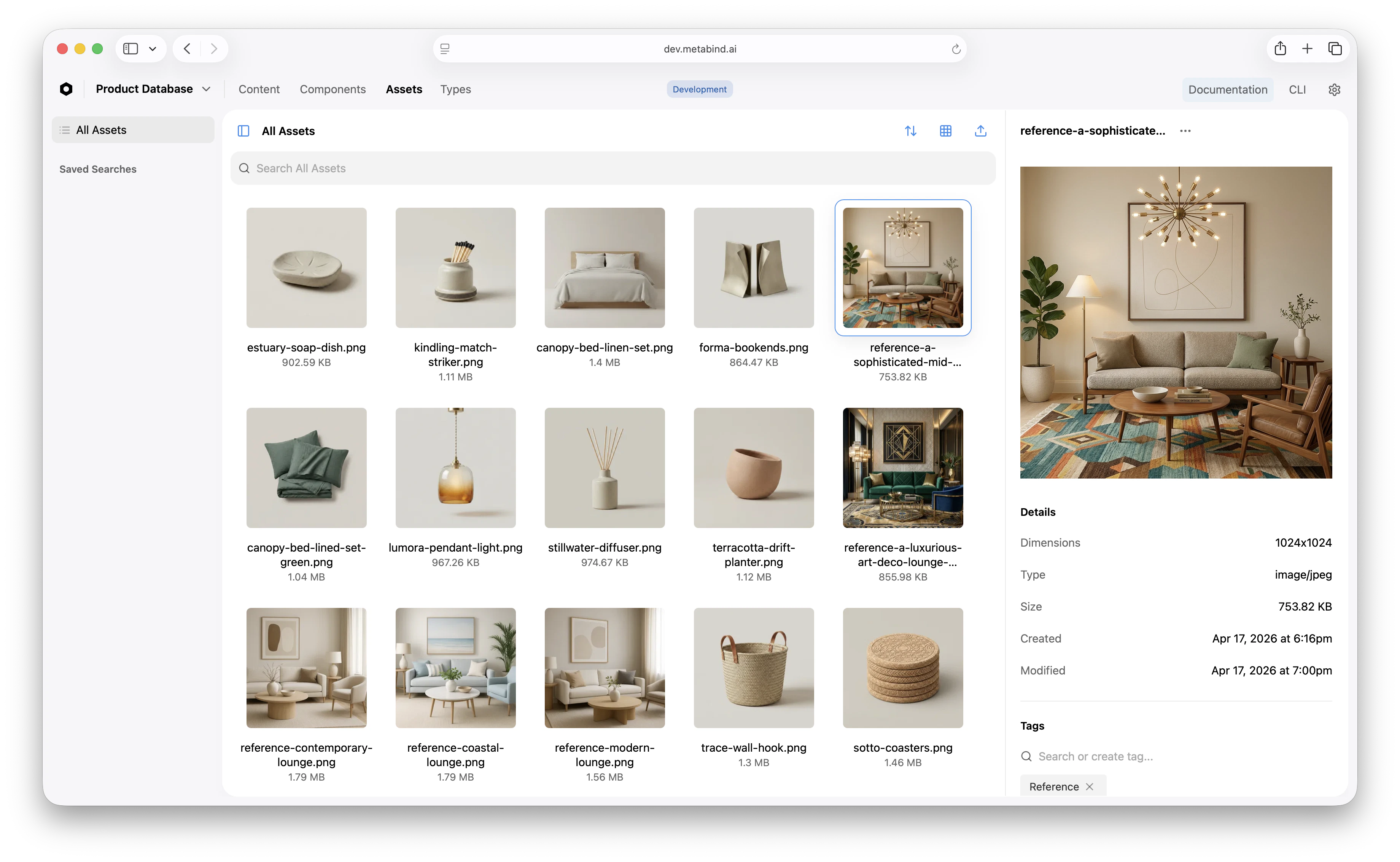
Assets live under **Assets** in the project sidebar. The library supports:
* **Grid and list views** with filter by type, tags, or name.
* **Tags** for organizing by collection, campaign, or category.
* **Folders** for hierarchical organization.
* **Asset metadata** — name, description, alt text — used by `search_assets` and improves AI matching quality.
Good asset metadata is the difference between an AI that finds the right image and one that doesn't. Spending time on names and descriptions pays off in tool quality.
`search_assets` doesn't appear in your project's UI Tools or Data Tools list — it's a platform capability that's always available on every published MCP App.
## How components reference assets
Components declare asset properties on their input schema:
```ts theme={null}
properties: {
asset: {
type: "asset",
title: "Product Image",
description: "The main product image",
assetTypes: ["image", "video"]
}
}
```
When the AI fills in the property, it provides an asset object containing a CDN URL. The component receives the URL and renders the right primitive — `Image` for images, `Video` for videos, `Model3D` for 3D models. Platform-specific format selection (USDZ vs. GLB, HLS vs. progressive video) happens at render time without component code branching.
## Asset types
| Type | Formats | Native rendering |
| ------------ | ----------------------------------- | ------------------------------------------------------------------------ |
| **Image** | JPEG, PNG, WebP, AVIF | Native image views with format negotiation |
| **Video** | MP4 source → HLS adaptive bitrate | Platform-native video players, autoplay, looping, controls |
| **3D model** | USDZ (Apple), GLB (everything else) | RealityKit / SceneKit on Apple, Filament on Android, model-viewer on web |
| **Audio** | MP3, M4A, AAC | Native audio playback |
| **Document** | PDF | Native PDF viewers |
3D models render with full lighting, materials, and AR Quick Look on iOS — not as web-embedded models. Video plays through the platform's video stack with adaptive bitrate.
## Asset organization
Assets live under **Assets** in the project sidebar. The library supports:
* **Grid and list views** with filter by type, tags, or name.
* **Tags** for organizing by collection, campaign, or category.
* **Folders** for hierarchical organization.
* **Asset metadata** — name, description, alt text — used by `search_assets` and improves AI matching quality.
Good asset metadata is the difference between an AI that finds the right image and one that doesn't. Spending time on names and descriptions pays off in tool quality.
 ## When to use assets vs. external URLs
Components can reference any URL in image and video properties — not only Metabind-hosted assets. Use external URLs when:
* The asset is hosted on a CDN you control.
* The asset belongs to a third party and shouldn't be copied into Metabind.
* The asset changes faster than a publish cycle (e.g., a daily-rotating banner).
Use Metabind-hosted assets when:
* You want semantic search via `search_assets`.
* You need adaptive video, 3D model rendering, or platform-specific format selection.
* You want CDN delivery and edge caching as part of the platform.
* The asset is part of the design system and should be versioned with the project.
## What to read next
How asset references appear inside component property schemas.
How `search_assets` fits alongside Interactive Tools and Data Tools.
How-to: upload, tag, and organize assets in MCP App Studio.
How videos and 3D models render across platforms.
## When to use assets vs. external URLs
Components can reference any URL in image and video properties — not only Metabind-hosted assets. Use external URLs when:
* The asset is hosted on a CDN you control.
* The asset belongs to a third party and shouldn't be copied into Metabind.
* The asset changes faster than a publish cycle (e.g., a daily-rotating banner).
Use Metabind-hosted assets when:
* You want semantic search via `search_assets`.
* You need adaptive video, 3D model rendering, or platform-specific format selection.
* You want CDN delivery and edge caching as part of the platform.
* The asset is part of the design system and should be versioned with the project.
## What to read next
How asset references appear inside component property schemas.
How `search_assets` fits alongside Interactive Tools and Data Tools.
How-to: upload, tag, and organize assets in MCP App Studio.
How videos and 3D models render across platforms.