> ## Documentation Index
> Fetch the complete documentation index at: https://docs.metabind.ai/llms.txt
> Use this file to discover all available pages before exploring further.
# Public and private projects
> Control whether your MCP server is reachable by anyone on the internet, with a kill switch for fast cutover
Every Metabind project has a **visibility** setting that controls whether the production MCP server endpoint is reachable publicly or only by tokens minted in your organization. This guide covers when to use each, how the kill switch works, and the API for automated cutovers.
## The visibility setting
A project's visibility lives at `settings.mcp.visibility` and takes one of two values:
| Value | Behavior |
| --------- | ------------------------------------------------------------------------------------------------ |
| `private` | Production endpoint only accepts requests bearing tokens minted in this organization. Default. |
| `public` | Production endpoint accepts requests with no auth — anyone with the URL can list and call tools. |
The setting applies only to the production endpoint. Drafts are always private and require a draft token.
## When to use each
**Stay private** for:
* MCP Apps that ship to specific customers or partners (per-token auth).
* MCP Apps embedded in your own product via the Assistant SDK (your backend mints tokens).
* Anything you'd otherwise gate behind an API key.
**Go public** for:
* MCP Apps with a public Gallery/discoverable surface (e.g., a directory listing).
* Demos, sample apps, and tutorials where you want one-click connection.
* Open utility tools that don't depend on per-user state.
A public project still benefits from per-token rate limits and audit logs — public doesn't mean unmetered.
## How to flip the toggle
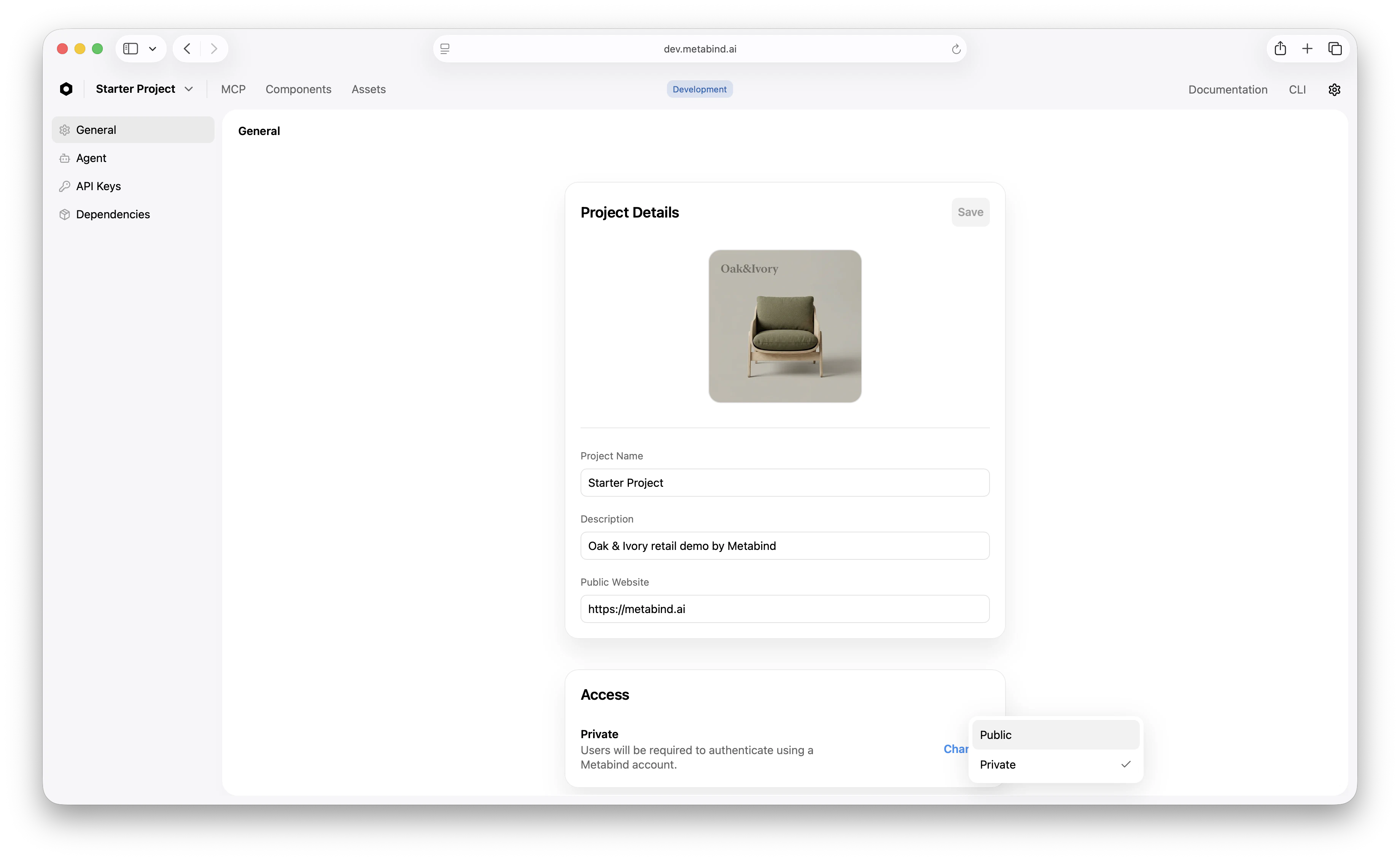
In MCP App Studio:
1. Open **Settings → General**.
2. In the **MCP server** section, change **Visibility** between **Private** and **Public**.
3. Confirm the change. For public → private (kill switch), the change is immediate.
 ## Kill switch (`disable-public`)
If you need to cut a public project off the internet *now* — a security incident, abuse, an unexpected cost spike — flip it back to private. The action is atomic: the production endpoint stops accepting unauthenticated requests within seconds.
The same operation is available via API for automated runbooks:
```bash theme={null}
curl -X POST \
"https://api.metabind.ai/app/v1/organizations/{org}/projects/{project}/mcp/disable-public" \
-H "Authorization: Bearer ${MB_JWT}"
```
The endpoint sets `settings.mcp.visibility = "private"` atomically and returns the updated project. Any organization Owner or Admin can call it.
## Permissions
| Role | Can change visibility |
| ------------------ | --------------------- |
| Organization Owner | yes |
| Organization Admin | yes |
| Project Owner | yes |
| Editor | no |
| Viewer | no |
This is intentionally tighter than other publish actions — making a project public has organization-wide reputational implications, so it's gated to Owners and Admins.
## Audit trail
Every visibility change is logged in the organization audit log:
* Who changed it
* When
* The old and new values
* The IP/user agent that made the call
For SOC 2 / HIPAA workflows, the audit log is the source of truth for visibility history. Export periodically if your retention requires it.
## Public visibility and tokens
When a project is public:
* Tools listed via `tools/list` are visible without auth.
* Tools called via `tools/call` execute without auth (subject to project rate limits).
* Per-token rate limits still apply for any caller that does authenticate.
* Audit log entries record the (anonymous) caller and any auth they did supply.
When a project is private:
* All requests must include `Authorization: Bearer `.
* Rate limits are scoped per token.
* Audit log entries link calls to the specific token used.
## Visibility and the Assistant SDK
The Assistant SDK always uses an authenticated path — your backend mints a per-user Metabind token — so visibility doesn't affect the SDK directly. Public visibility primarily matters for connected MCP hosts and direct REST/MCP client connections.
## Fast cutover playbook
If you discover an active issue on a public project:
1. **Hit the kill switch.** `POST .../mcp/disable-public` from your runbook (or click the toggle in MCP App Studio).
2. **Confirm in the audit log** that the change took effect — every subsequent unauthenticated call should now 401.
3. **Investigate.** Use the audit log to trace what calls came through during the public window.
4. **Re-enable cautiously.** Once the underlying issue is resolved, decide whether to re-enable public visibility or keep the project private going forward.
Most teams keep production projects private and only enable public visibility for explicitly-listed demo or gallery projects.
## Related
Where the visibility setting first appears during project creation.
Visibility changes and per-call auth records.
Per-token and per-project ceilings, public or private.
Who can change visibility.
## Kill switch (`disable-public`)
If you need to cut a public project off the internet *now* — a security incident, abuse, an unexpected cost spike — flip it back to private. The action is atomic: the production endpoint stops accepting unauthenticated requests within seconds.
The same operation is available via API for automated runbooks:
```bash theme={null}
curl -X POST \
"https://api.metabind.ai/app/v1/organizations/{org}/projects/{project}/mcp/disable-public" \
-H "Authorization: Bearer ${MB_JWT}"
```
The endpoint sets `settings.mcp.visibility = "private"` atomically and returns the updated project. Any organization Owner or Admin can call it.
## Permissions
| Role | Can change visibility |
| ------------------ | --------------------- |
| Organization Owner | yes |
| Organization Admin | yes |
| Project Owner | yes |
| Editor | no |
| Viewer | no |
This is intentionally tighter than other publish actions — making a project public has organization-wide reputational implications, so it's gated to Owners and Admins.
## Audit trail
Every visibility change is logged in the organization audit log:
* Who changed it
* When
* The old and new values
* The IP/user agent that made the call
For SOC 2 / HIPAA workflows, the audit log is the source of truth for visibility history. Export periodically if your retention requires it.
## Public visibility and tokens
When a project is public:
* Tools listed via `tools/list` are visible without auth.
* Tools called via `tools/call` execute without auth (subject to project rate limits).
* Per-token rate limits still apply for any caller that does authenticate.
* Audit log entries record the (anonymous) caller and any auth they did supply.
When a project is private:
* All requests must include `Authorization: Bearer `.
* Rate limits are scoped per token.
* Audit log entries link calls to the specific token used.
## Visibility and the Assistant SDK
The Assistant SDK always uses an authenticated path — your backend mints a per-user Metabind token — so visibility doesn't affect the SDK directly. Public visibility primarily matters for connected MCP hosts and direct REST/MCP client connections.
## Fast cutover playbook
If you discover an active issue on a public project:
1. **Hit the kill switch.** `POST .../mcp/disable-public` from your runbook (or click the toggle in MCP App Studio).
2. **Confirm in the audit log** that the change took effect — every subsequent unauthenticated call should now 401.
3. **Investigate.** Use the audit log to trace what calls came through during the public window.
4. **Re-enable cautiously.** Once the underlying issue is resolved, decide whether to re-enable public visibility or keep the project private going forward.
Most teams keep production projects private and only enable public visibility for explicitly-listed demo or gallery projects.
## Related
Where the visibility setting first appears during project creation.
Visibility changes and per-call auth records.
Per-token and per-project ceilings, public or private.
Who can change visibility.