

What the asset pipeline does
When you upload an asset, the platform handles the work that would otherwise require multiple separate products:
The output: an asset that components can reference, that the AI can search by description, and that renders natively on every platform.
The search_assets tool
Every project gets an auto-registered MCP tool called search_assets. The tool takes a natural-language query and returns matching assets from the project’s library, with semantic relevance ranking. The AI can call it whenever it needs a relevant image, video, or 3D model for a tool response.

search_assets doesn’t appear in your project’s UI Tools or Data Tools list — it’s a platform capability available on every published MCP App by default. It is not offered to anonymous sessions on public projects, and a project can turn it off by setting settings.mcp.builtinTools.searchAssets to false.
How components reference assets
Components declare asset properties on their input schema:Image for images, Video for videos, Model3D for 3D models. Platform-specific format selection (USDZ vs. GLB, HLS vs. progressive video) happens at render time without component code branching.
Asset types
3D models render with full lighting, materials, and AR Quick Look on iOS — not as web-embedded models. Video plays through the platform’s video stack with adaptive bitrate.
Asset organization
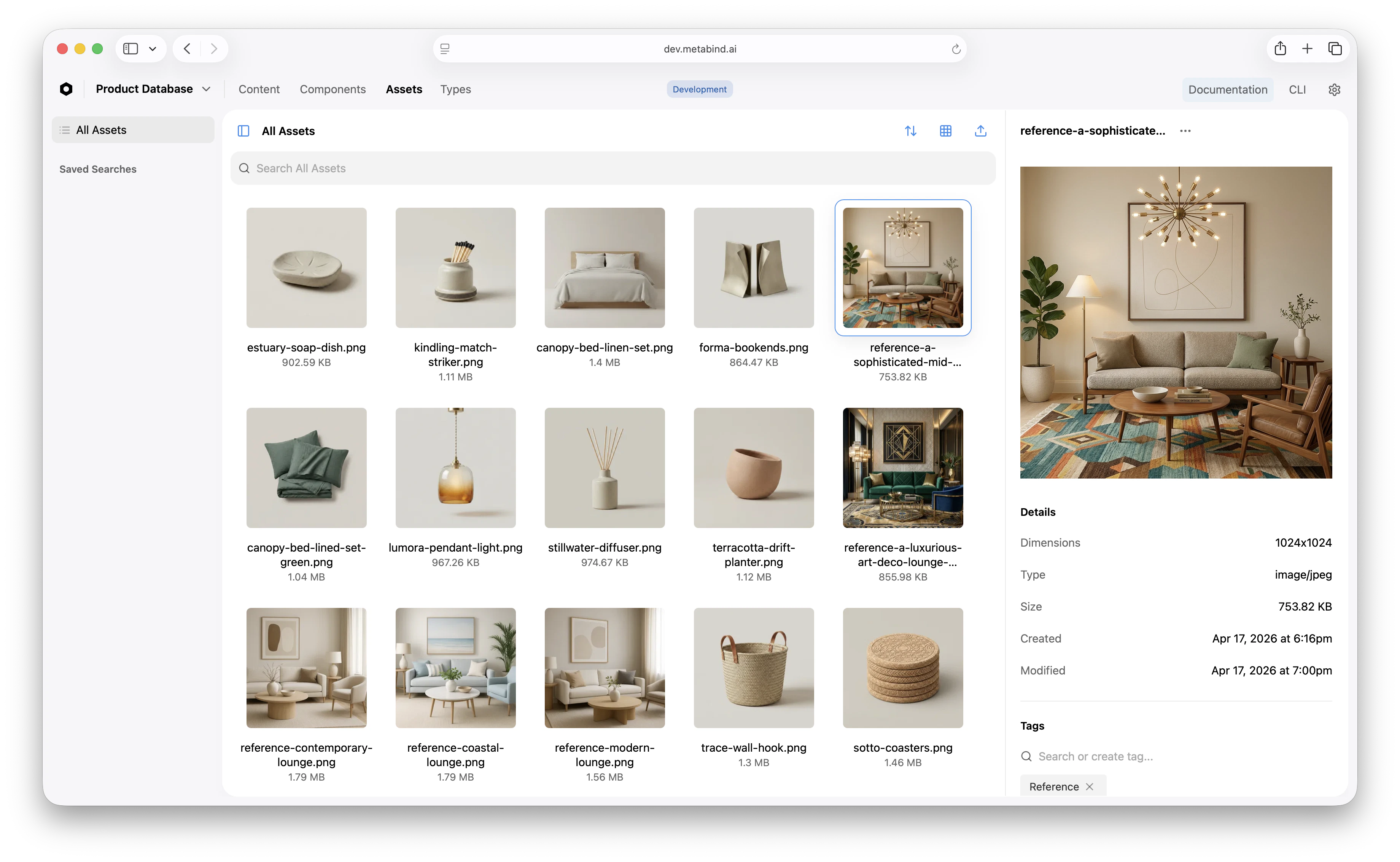
Assets live under the Assets tab in the project’s top navigation. The library supports:- Grid and list views with filter by type, tags, or name.
- Tags for organizing by collection, campaign, or category.
- Folders for hierarchical organization.
- Asset metadata — name, description, alt text — used by
search_assetsand improves AI matching quality.
When to use assets vs. external URLs
Components can reference any URL in image and video properties — not only Metabind-hosted assets. Use external URLs when:- The asset is hosted on a CDN you control.
- The asset belongs to a third party and shouldn’t be copied into Metabind.
- The asset changes faster than a publish cycle (e.g., a daily-rotating banner).
- You want semantic search via
search_assets. - You need adaptive video, 3D model rendering, or platform-specific format selection.
- You want CDN delivery and edge caching as part of the platform.
- The asset is part of the design system and should be versioned with the project.
What to read next
Components and Packages
How asset references appear inside component property schemas.
Tools and Types
How
search_assets fits alongside Interactive Tools and Data Tools.Manage assets
How-to: upload, tag, and organize assets in Metabind Studio.
Native rendering
How videos and 3D models render across platforms.