


Interactive Tools
Backed by a layout component. The AI generates schema-conforming JSON in a single call; the platform validates against the schema, compiles the JSON to BindJS, and returns a rendered UI bundle. Only components on the Type’s allowlist can appear in the result. Interactive Tools are how the AI returns rendered components instead of text — product cards, data tables, charts, comparison views, photo galleries, forms, animated layouts. The expressive range is the same as the rest of your app.Data Tools
Backed by a data component. The AI calls the tool with structured input; the platform executes the component’shandler() function inside a V8 sandbox to fetch data from external APIs, then returns structured JSON.
Data Tools are how the AI gets the data it needs to answer a question. Common pattern: the AI calls a Data Tool to fetch something, then chains into an Interactive Tool to render the result.
Handlers run with secrets (API keys, OAuth tokens) injected via env.secrets rather than embedded in the component code. Outbound HTTP is restricted to allowed domains. Execution time and memory are capped (60 seconds, 128 MB).
Content as a Data Tool (the headless CMS pattern)
When the data the AI needs is content you manage in Metabind itself — a product catalog, a knowledge base, a library of documents — wrap that content in a Data Tool that calls the Metabind Content API. This is how Oak & Ivory’sproduct_search works: the catalog and images live in a Metabind content project; the Data Tool’s handler() queries the project and returns ranked products to the AI.
Type properties resolve in three tiers
When the MCP server registers a Type as a tool, it resolves tool properties (title, annotations.*, execution) in this order:
Types are versioned via packages
A Type references a specific package version. Editing a published Type puts it inmodified status — the production endpoint continues to serve the last published version while the draft endpoint shows the working copy. Publishing the project promotes the modified Type’s package version to production.
This means Types are immutable in production until you choose to update them. See Components and Packages for the package model.
Decision: Interactive Tool or Data Tool?
When in doubt: if the user should see something, use an Interactive Tool. If the AI needs to think with something, use a Data Tool.
Where Types live in Metabind Studio
Types appear in the project sidebar under UI Tools (Interactive Tools) and Data Tools. The list shows every Type’s status (Draft, Published, Modified) and the component that backs it.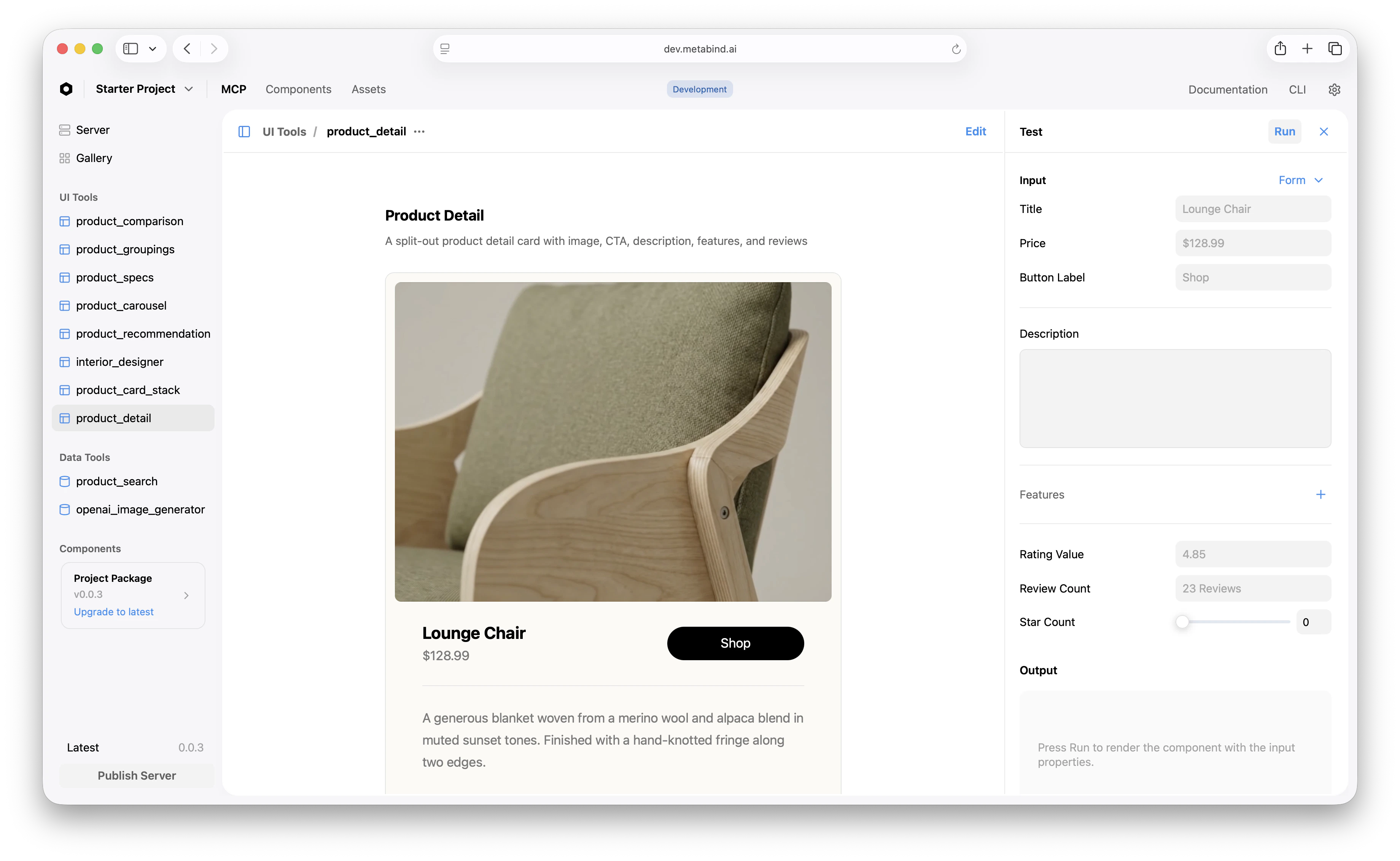
What to read next
Components and Packages
Each Type is backed by a component inside a versioned package.
Governance
How schema validation and component allowlists protect every render.
Build an Interactive Tool
How-to: define an Interactive Tool from scratch.
Build a Data Tool
How-to: wrap an API as a Data Tool.