
Documentation Index

Fetch the complete documentation index at: https://docs.metabind.ai/llms.txt

Use this file to discover all available pages before exploring further.

The inspector is the visual builder inside MCP App Studio that lets non-developers configure components without touching code. Every BindJS property can opt into specific inspector controls (sliders, dropdowns, multi-line inputs, etc.) by adding an inspector block to its definition. This page is the reference for every supported control and option.

Where the inspector lives

When a component is bound to a Type, the Type’s edit page shows an inspector form generated from the component’s properties. Editors fill the form; the values flow through to the rendered component on save.
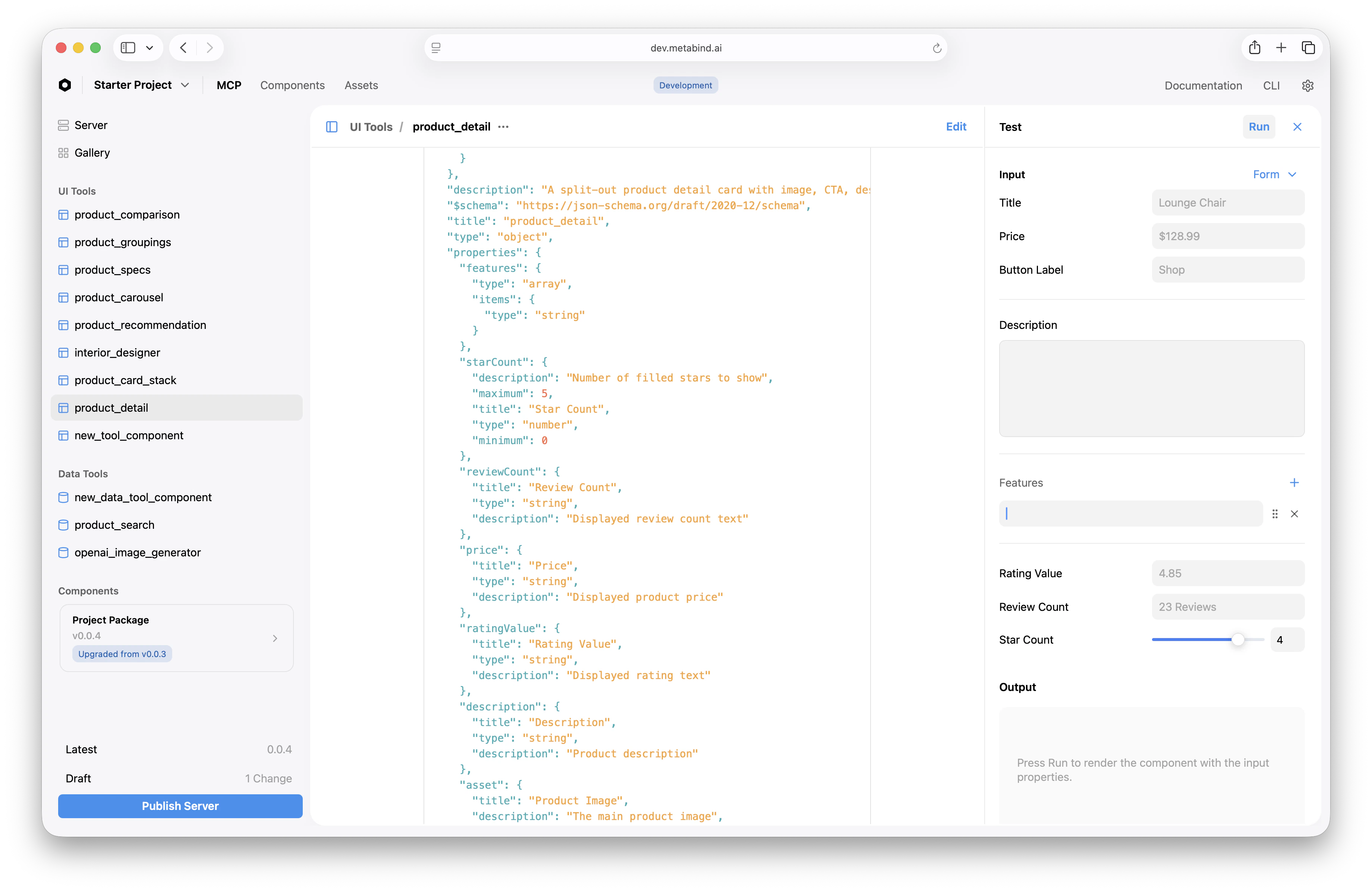
The product_detail Type edit page in MCP App Studio — JSON schema in the center, inspector form on the right with single-line text fields, a multi-line description, an array editor for Features, and a slider for Star Count
The inspector is part of MCP App Studio, not part of the BindJS rendering runtime. It exists to give content editors and non-developer team members a safe surface for editing tool inputs.

Common options (all property types)

These options apply to every property’s inspector block, regardless of type:
OptionTypePurpose
showLabelbooleanShow or hide the field label in the inspector. Default true.
showDividerbooleanShow a divider line above this field — useful for grouping.
helpDescriptionstringOne-line help text shown beneath the field.
visible(props) => booleanConditionally show the field based on the values of other fields.
properties: {
  starCount: {
    type: "number",
    title: "Star Count",
    inspector: {
      control: "slider",
      step: 1,
      showDivider: true,
      helpDescription: "Number of stars to display in the rating."
    }
  }
}

control values by property type

The control option determines the inspector UI. Valid values depend on the property’s type.

string properties

controlUI
singlelineSingle-line text input. Default for string.
multilineMulti-line text area.
codeMonospace code editor with syntax highlighting.
String-specific options:
OptionTypePurpose
placeholderstringPlaceholder text shown when empty.
markdownbooleanEnable a formatting toolbar (multiline only).
numberOfLinesnumberInitial height in lines for multiline.
properties: {
  description: {
    type: "string",
    title: "Description",
    inspector: {
      control: "multiline",
      numberOfLines: 4,
      placeholder: "Describe the product…",
      markdown: true
    }
  }
}

number and integer properties

controlUI
sliderSlider with min/max from validation.
inputNumeric input field. Default.
Number-specific options:
OptionTypePurpose
stepnumberIncrement for slider or stepper.
properties: {
  rating: {
    type: "number",
    title: "Rating",
    validation: { min: 0, max: 5 },
    inspector: { control: "slider", step: 0.5 }
  }
}

enum properties

controlUI
segmentedSegmented control (good for ≤ 4 options).
dropdownStandard dropdown. Default.
properties: {
  size: {
    type: "enum",
    title: "Size",
    values: ["small", "medium", "large"],
    inspector: { control: "segmented" }
  }
}

boolean properties

Booleans render as a toggle switch automatically — no explicit control value is needed. Use inspector to add a helpDescription or to gate visibility.
properties: {
  featured: {
    type: "boolean",
    title: "Featured",
    inspector: { helpDescription: "Show this item in the featured shelf." }
  }
}

date properties

Dates render as a date picker. There is no control option — instead, use placeholder or other top-level inspector options.

asset properties

Asset properties render as an asset picker that opens the project’s asset library. The picker filters by the property’s assetTypes (e.g., ["image"], ["video"], ["model"]).
properties: {
  hero: {
    type: "asset",
    title: "Hero Image",
    assetTypes: ["image"]
  }
}

array properties

Arrays render as a repeatable group with + Add and controls. Each item uses the valueType’s inspector configuration. For arrays of components (valueType: { type: "component" }), the picker filters by allowedComponents.

component properties

Component properties render as a typed picker showing only the components on the slot’s allowedComponents list. Picking one inserts the component reference; double-clicking opens its inspector.

group properties

Groups render as nested forms inside a collapsible section. Each nested property uses its own inspector configuration.

Conditional visibility (visible)

The visible callback runs every time the component’s values change. Use it to hide fields that don’t apply to the current state:
properties: {
  variant: {
    type: "enum",
    values: ["solid", "outline", "ghost"],
    title: "Variant"
  },
  borderWidth: {
    type: "number",
    title: "Border Width",
    inspector: {
      control: "slider",
      step: 1,
      visible: (props) => props.variant === "outline"
    }
  }
}

Layout grouping

Use showDivider: true on the first property of a logical group to visually separate it from the previous group. There is no explicit “group” wrapper — dividers do the work. For nested groups (a property whose type is group), the inspector renders the nested fields in a collapsible section.

Validation

inspector configures appearance and editor UX, not constraints. Constraints live under the property’s separate validation block:
properties: {
  count: {
    type: "number",
    title: "Count",
    validation: { min: 1, max: 50 },     // enforced server-side
    inspector: { control: "slider", step: 1 }   // appearance only
  }
}
The platform validates against validation before any tool call resolves, regardless of what the inspector showed the editor.

MCP App Studio

The visual development surface the inspector lives in.

Authoring BindJS components

Where you write the property definitions the inspector renders.

BindJS Reference

Property type reference: string, number, enum, array, group, etc.

Schema validation

How validation constraints are enforced on every tool call.