

What publishing does
Clicking Publish in Metabind Studio runs four steps atomically:- Snapshot the package. Every component file in your project is bundled into a new package version (e.g.,
1.4.0→1.5.0). The bundle is immutable — published code never changes after the fact. - Pin Types to the package version. Every Type in the project (Interactive Tools and Data Tools) is updated to reference the new package version.
- Promote to the production endpoint.
https://mcp.metabind.ai/<org>/<project>now serves the new package; previously connected hosts pick up the change on their next list-tools call. - Record a version entry. A row appears in the project’s publish history with timestamp, author, and the diff between this version and the previous one.
Where the Publish button lives
Open the project header in Metabind Studio. To the right of the project name, you’ll see the Publish button. It’s only enabled when there are changes to publish.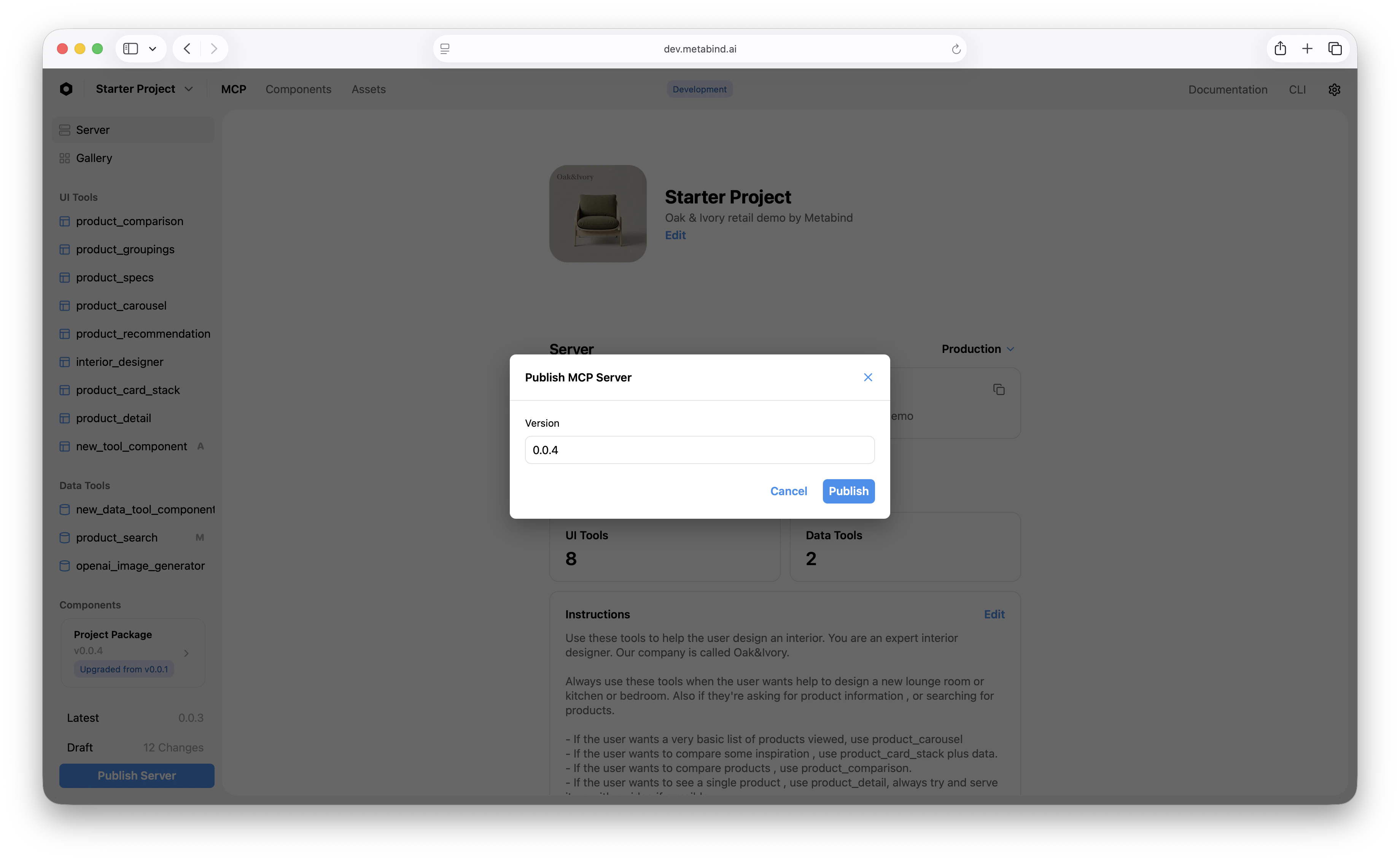
The publish dialog
Before the change actually promotes, Metabind Studio shows a dialog with:- What’s new. A list of Types added, modified, or removed since the last publish.
- Component changes. Bumps to component files, with file-by-file diffs for review.
- Suggested version. Semantic version bump suggestion based on whether the changes appear additive (
1.4.x → 1.5.0) or breaking (1.4.x → 2.0.0). You can override this. - Notes (optional). A free-text changelog entry that ends up in the version history.
Who can publish
Publish requires a role with the relevantpublish permission — Editor for content, Admin or Owner for components, packages, and content types. Viewers can see drafts and previews but can’t promote. See Team management for the full role matrix.
What publishing locks
Once a package version is published, the bundle is immutable:- The component code at version
1.5.0will always be the code that was in your draft when1.5.0was published. Even if you edit the same component the next day, that’s a different version. - Types pinned to a specific version don’t drift. A host that connected and cached
product_card@1.5.0gets the same schema and behavior on every subsequent call until that Type is repinned.
What publishing doesn’t lock
A few things are not part of the published bundle and continue to be editable post-publish:- Secrets. Data Tool secrets live outside the package. You can rotate
STRIPE_API_KEYwithout republishing. - Allowed domains. Editable in real time (this is enforced at request time, not bundle time).
- Tool descriptions and annotations. Editable in real time on the Type’s edit page.
- Project Instructions. The free-text instructions that are shipped to MCP hosts as part of the protocol — editable without republishing.
Republishing
If you find a problem after publishing, you have two options:- Fix forward. Make the fix in Metabind Studio, publish a new version. This is the typical case.
- Roll back. Revert to a previous published package version. See Rolling back.
Cache behavior on connected hosts
MCP hosts list tools when they connect and cache the schemas. After a publish, hosts pick up the new schemas on:- Their next list-tools call (typically every conversation start).
- A manual reconnect, if the host supports one.
Publish history
Every publish appears in the project’s history. The history shows:- Timestamp
- Author (the Metabind Studio user who clicked Publish)
- Version number
- Notes (the free-text entry from the publish dialog)
- Diff (a link to the file-by-file diff between this version and the previous)
Related
Draft and production
The two endpoints publishing promotes between.
Package versioning
What semantic versioning means for Metabind packages.
Rolling back
Revert to a previously published version.
Audit logs
Per-publish audit records and tool-call observability.