

Organizations and projects

System roles
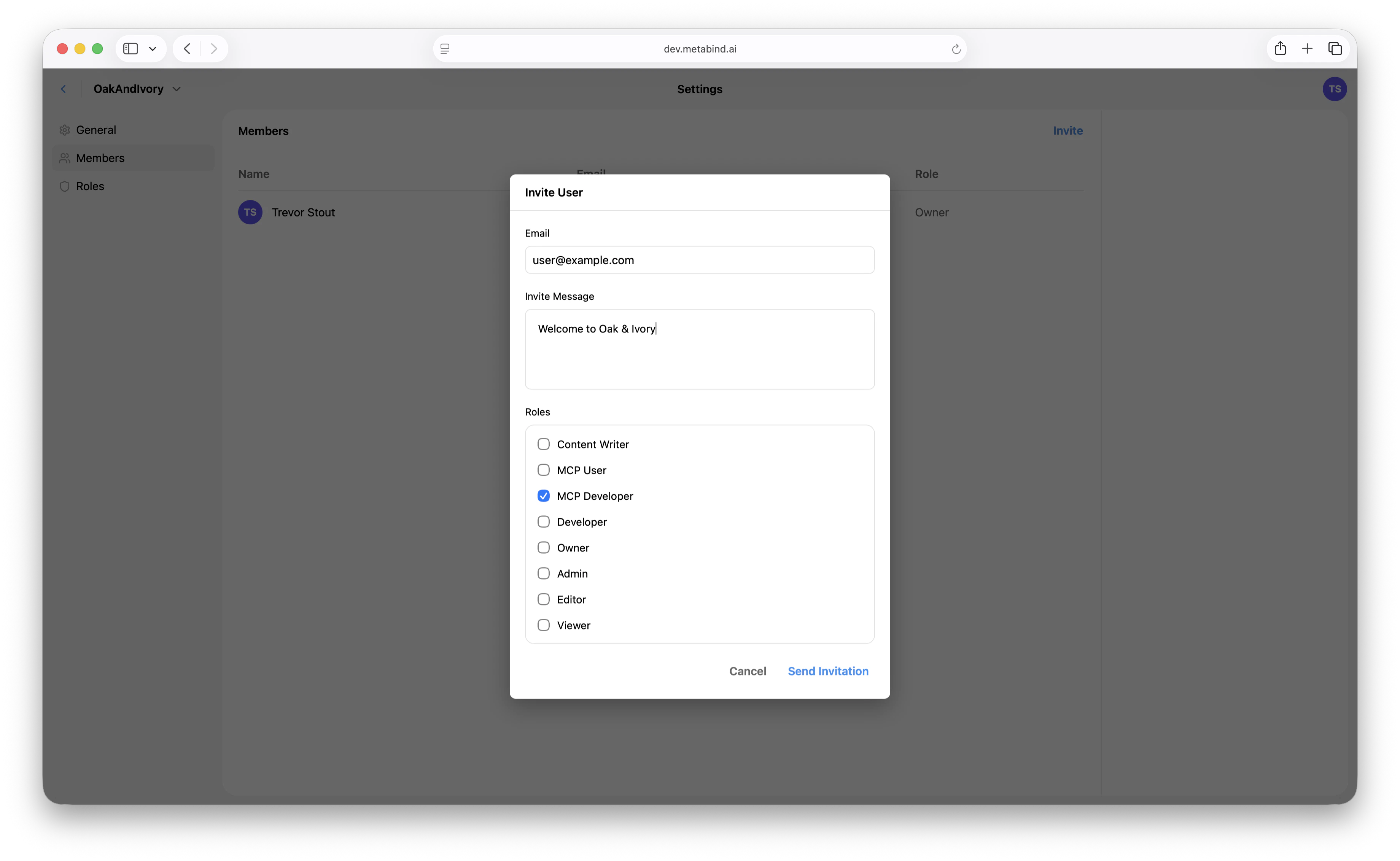
Eight roles are seeded for every organization. Six are general-purpose (Owner, Admin, Developer, Editor, Viewer, Content Writer); two are MCP-specific (MCP User, MCP Developer).
Owner, Admin, Developer, Editor, Viewer, and Content Writer are editable role templates — the seeded permission shape is the recommended starting point, but Admins can adjust them per organization.
MCP User and MCP Developer are system roles with stricter behavior. They cannot be deleted; their names and descriptions are read-only; only the
mcp permissions are editable. This protects against an Admin accidentally granting them broader CMS access. If you need a different shape, create a custom role.
Custom roles
Admins can create custom roles in Settings → Roles with arbitrary permission combinations across resources (organizations, projects, users, roles, apiKeys, components, packages, contentTypes, content, assets, mcp). The full permission model is documented in REST API: roles.
Inviting members
In Metabind Studio:- Open Settings → Team at the organization level.
- Click Invite.
- Enter the email and pick the role the user will hold across the organization.
- The invitee receives an email with a link to accept.
Project access
Every member of an organization can see every project in the organization, scoped by what their organization role permits. There is no per-project membership step today — adding a user to the organization is what gives them project access. The server data model has a narrow project-level role assignment slot (project.permissions.roles.admin/editor) that engineering uses internally, but it is not exposed in Metabind Studio and is not part of the supported workflow. Treat organization role as the granularity you can actually configure.
Changing roles
A user has one organization-level role at a time. Change it in Settings → Team by editing their row. The change is effective immediately and applies to every project in the organization. Demoting a user revokes the relevant capabilities on their next request — including in-flight publish or write attempts.Removing members
Same screen. Removing a member revokes their access to the entire organization and every project in it.API keys vs. JWT login (machine and programmatic access)
Metabind supports two distinct access patterns for non-interactive callers:
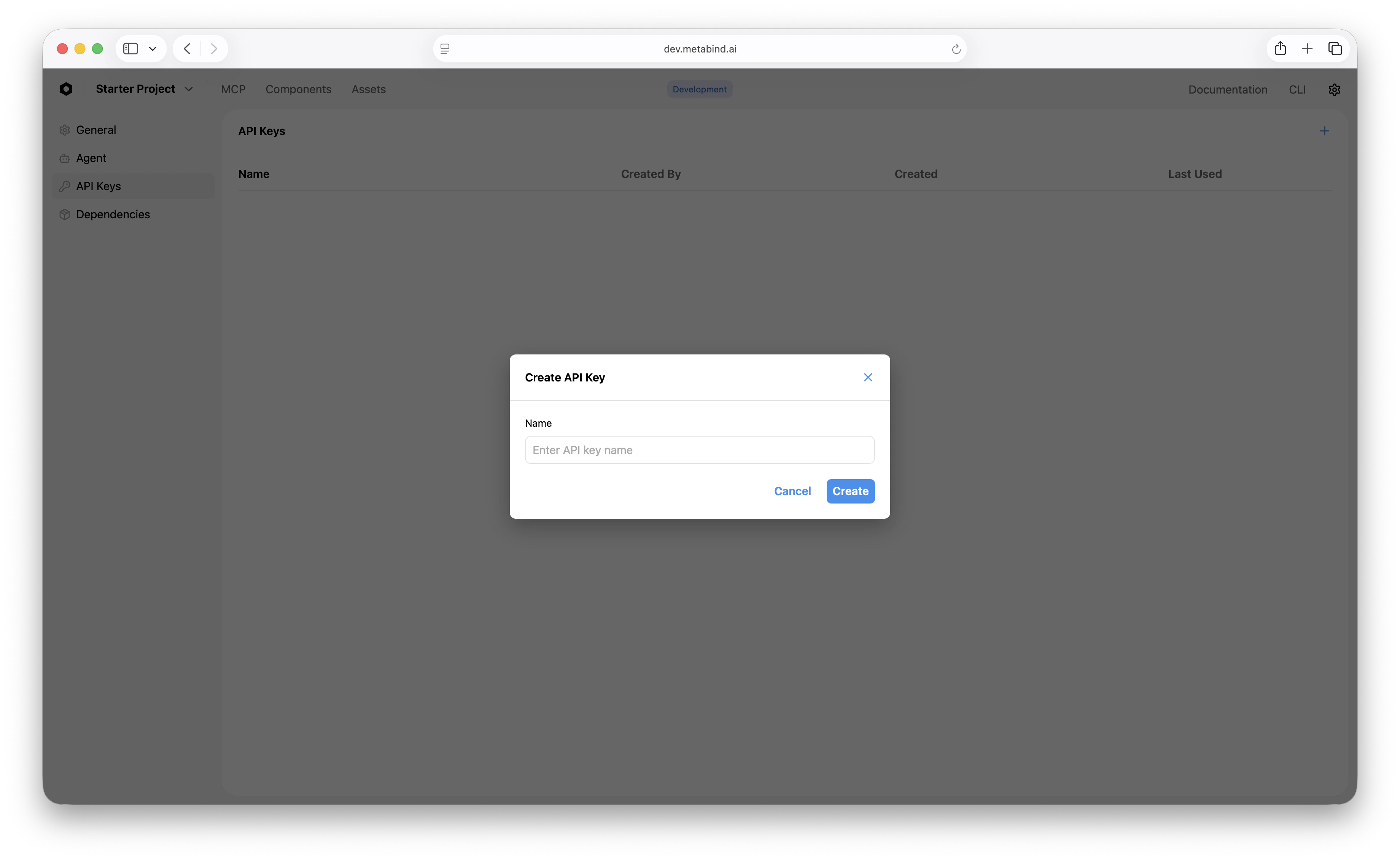
To create an API key:
- Open Settings → API Keys on the project.
- Click Create API key.
- Copy the key — it’s shown once.
SSO and SAML
For organizations on the Enterprise plan, SSO via SAML 2.0 (and OIDC for Azure AD / Google Workspace) is supported. Once connected, organization membership is provisioned by your identity provider, and removing a user from your IdP automatically removes them from Metabind on next session check. See SSO and SAML for the full setup.Best practices
- Default to Viewer or Content Writer for new joiners. Promote when they need it.
- Use API keys for client apps that only need to read published content. JWT login is overkill and exposes more surface than necessary.
- Use a dedicated CI user with a tightly scoped role for automation rather than a personal account.
- Use SSO for organizations of 10+. It’s faster than manual invitations and removes the offboarding cleanup risk.
- Review the system MCP roles before granting CMS-side roles to staff who only need to call tools. MCP User / MCP Developer give exactly that, with no editing surface.
Related
SSO and SAML
Identity provider integration.
Audit logs
Per-call observability and execution history.
Project visibility
Public vs. private projects, the kill-switch, and rate limits.
Rate limiting
Per-project and per-IP limits.