

Prerequisites
- A ChatGPT plan that supports custom connectors.
- A Metabind project with at least one published Type. See Your first MCP App.
- A Metabind login with access to the project. The OAuth flow uses your Metabind session, so anyone who connects must be a member of the organization.
Get the connection URL
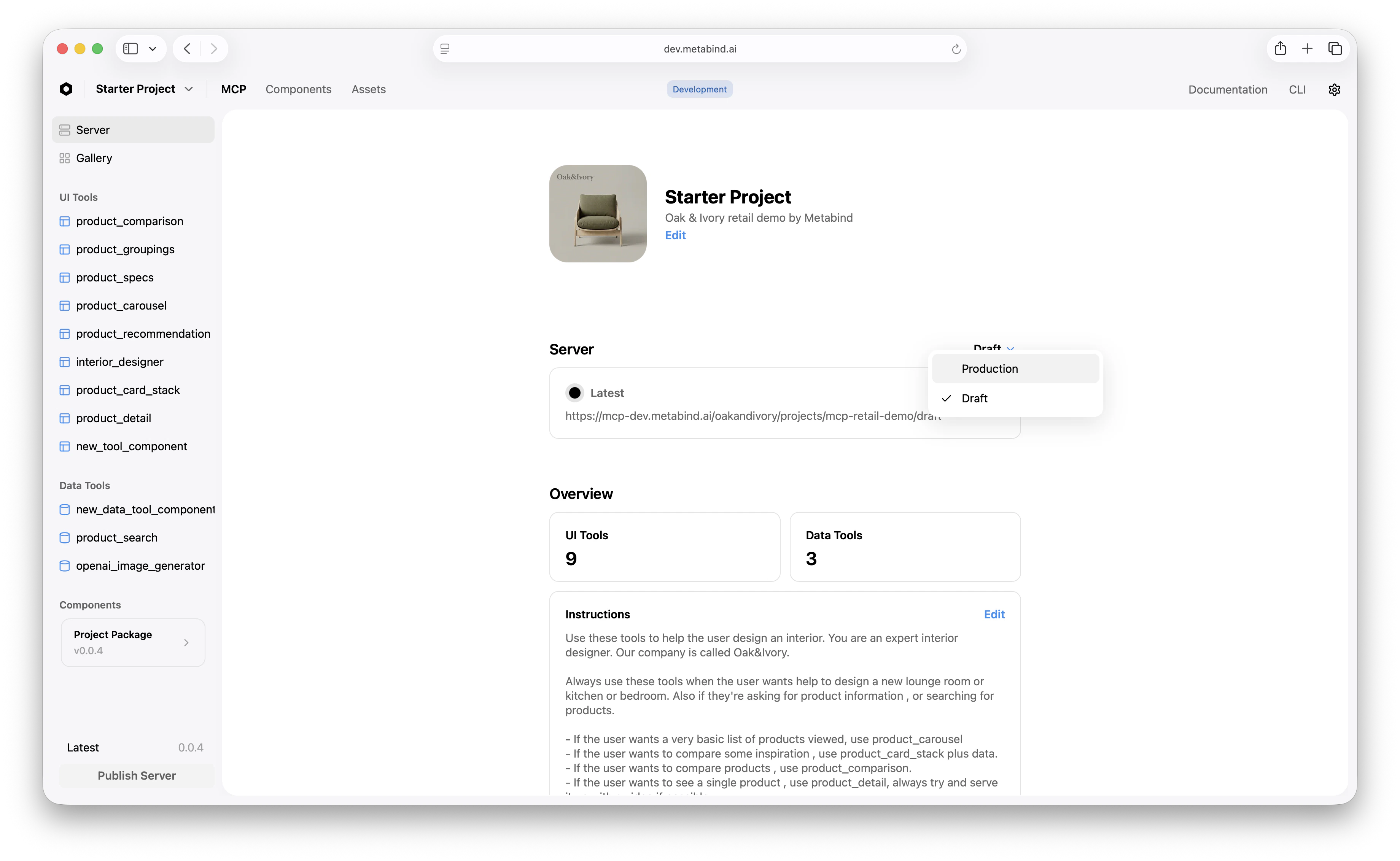
In Metabind Studio:- Open the project.
- On the Server tab, switch the endpoint dropdown to Production (for the published URL) or Draft (for the working copy).
- Copy the URL.
Add the connector in ChatGPT
- Open ChatGPT → Settings → Connectors → Custom.
- Click Add custom connector.
- Paste the URL from Metabind Studio.
- ChatGPT opens a Metabind OAuth authorization popup. Sign in if you aren’t already, review the requested scopes, and click Authorize.
- Save.
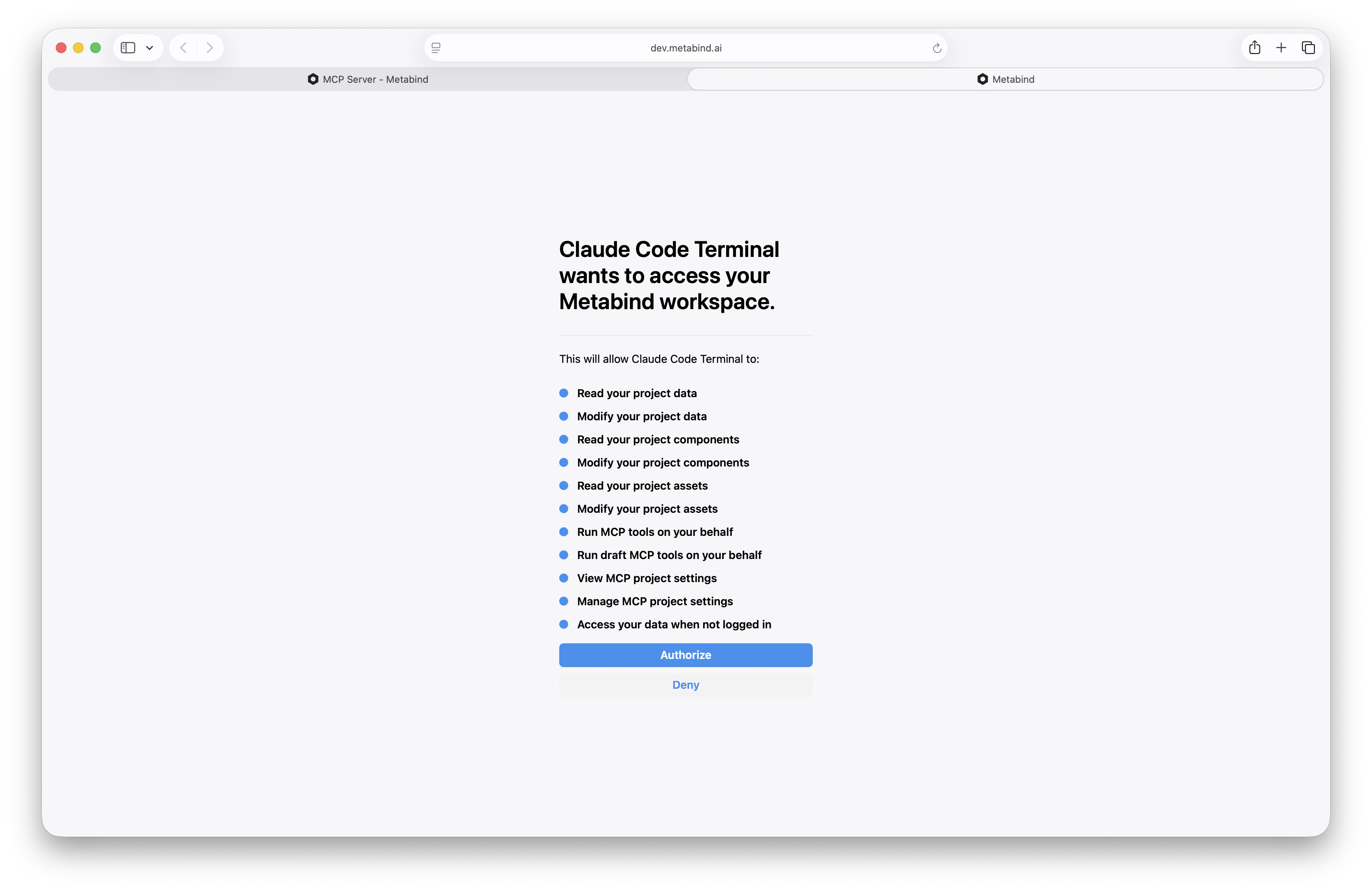
tools/list. If the OAuth grant is valid and the project has at least one published tool, the connector is added and your tools appear in the connectors list.
Verify the connection
Open a new ChatGPT conversation. Click the connectors menu in the composer and confirm your project is listed and enabled. Then ask the assistant to use a tool:Draft vs. production for ChatGPT
ChatGPT’s custom connectors are usually configured per-user, not per-workspace, but workspaces with org-level admin can configure shared connectors. Either way, treat draft and production as separate connectors:- Add the draft URL as one connector for development testing.
- Add the production URL as a second connector for end-user use.
Connector descriptions and instructions
When you add a connector, ChatGPT shows the project’s tool list and any Instructions you’ve configured in Metabind Studio. Instructions are free-text guidance the AI reads alongside the tool schemas — use them to explain when to call which tool, not how to call them (the schemas handle that). Update Instructions in Metabind Studio → Project → Instructions. Changes are live without a republish.Sharing the connector with users
To let other users add your tools to their ChatGPT, share the project URL. Each user pastes it into ChatGPT’s custom-connector flow and runs through the same OAuth authorization with their own Metabind login. End users must be members of your Metabind organization to authorize. For public-visibility projects, anyone can authorize; for private projects, invite users to the organization first via Team management.Authorization management
OAuth grants are issued and revoked in two places:- ChatGPT side. Remove the connector in Settings → Connectors to drop the local token. Re-add and re-authorize whenever you want it back.
- Metabind side. Open Settings → Authorized apps in Metabind Studio (organization scope) to see every active OAuth grant and revoke any of them. Revocation takes effect on the next request — ChatGPT’s connector will flip to a failed state until the user re-authorizes.
Tool annotations and ChatGPT behavior
ChatGPT honors several MCP tool annotations:readOnlyHint: true— the tool is safe to call eagerly without confirmation.openWorldHint: true— the tool reaches third-party services; ChatGPT may surface a “this tool calls external services” badge.taskSupport— for long-running tools, ChatGPT polls for completion.
Troubleshooting
Related
Connect to Claude Desktop
Same OAuth flow, different host.
Custom MCP hosts
Connect any MCP-compatible client.
Draft and production
The two endpoints to point connectors at.