

Two connections, two reasons
Most teams configure Claude Desktop twice — once for draft, once for production:
This guide covers both. They use the same connection flow — just different URLs.
Prerequisites
- Claude Desktop installed (download).
- A Metabind project with at least one published Type. See Your first MCP App.
- A Metabind login that has access to the project. The OAuth flow uses your Metabind session, so anyone who connects must be a member of the organization.
Get the connection URL
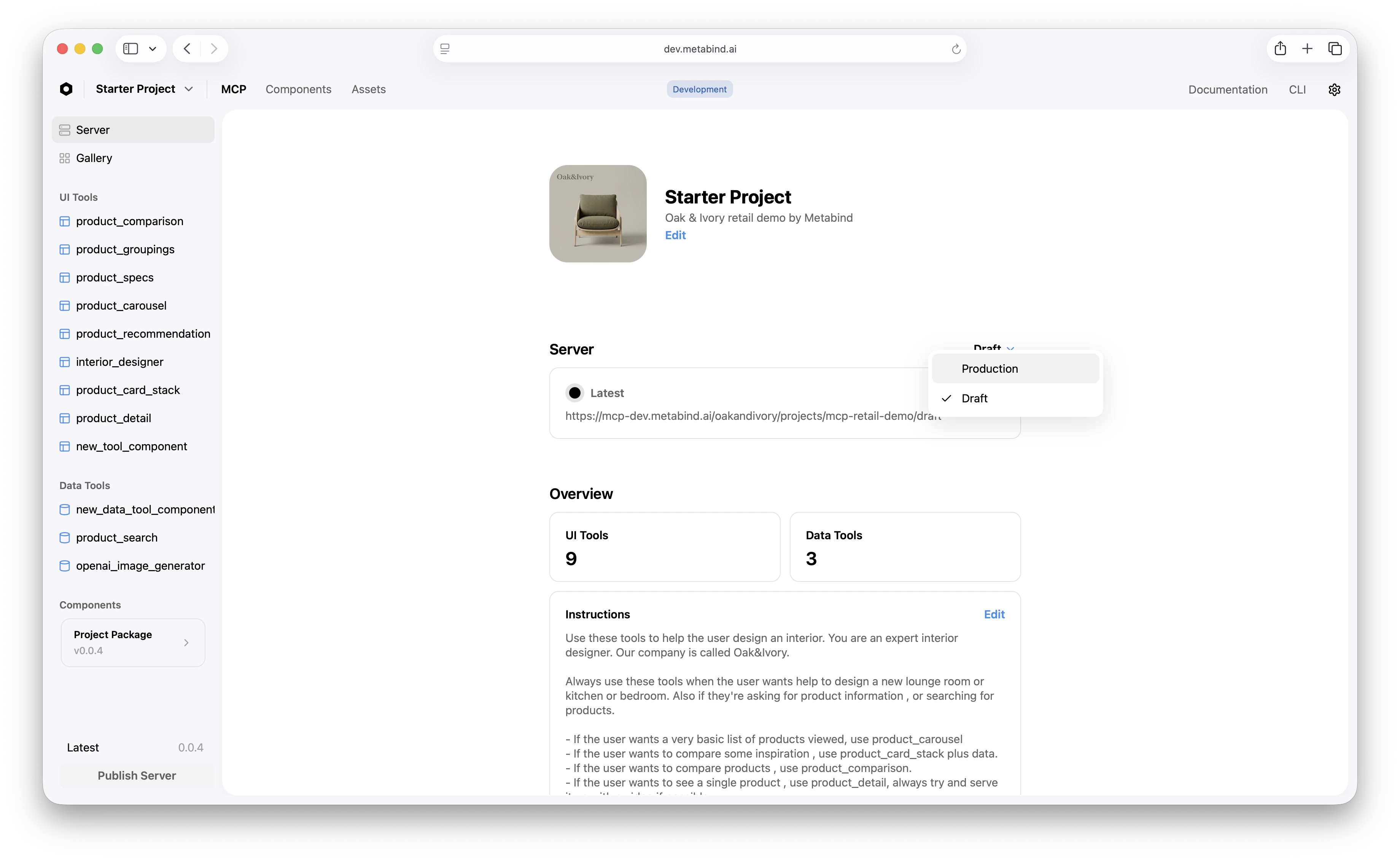
In Metabind Studio:- Open the project.
- On the Server tab, switch the endpoint dropdown to Production (for the published URL) or Draft (for the working copy).
- Copy the URL.
Add the connector in Claude Desktop
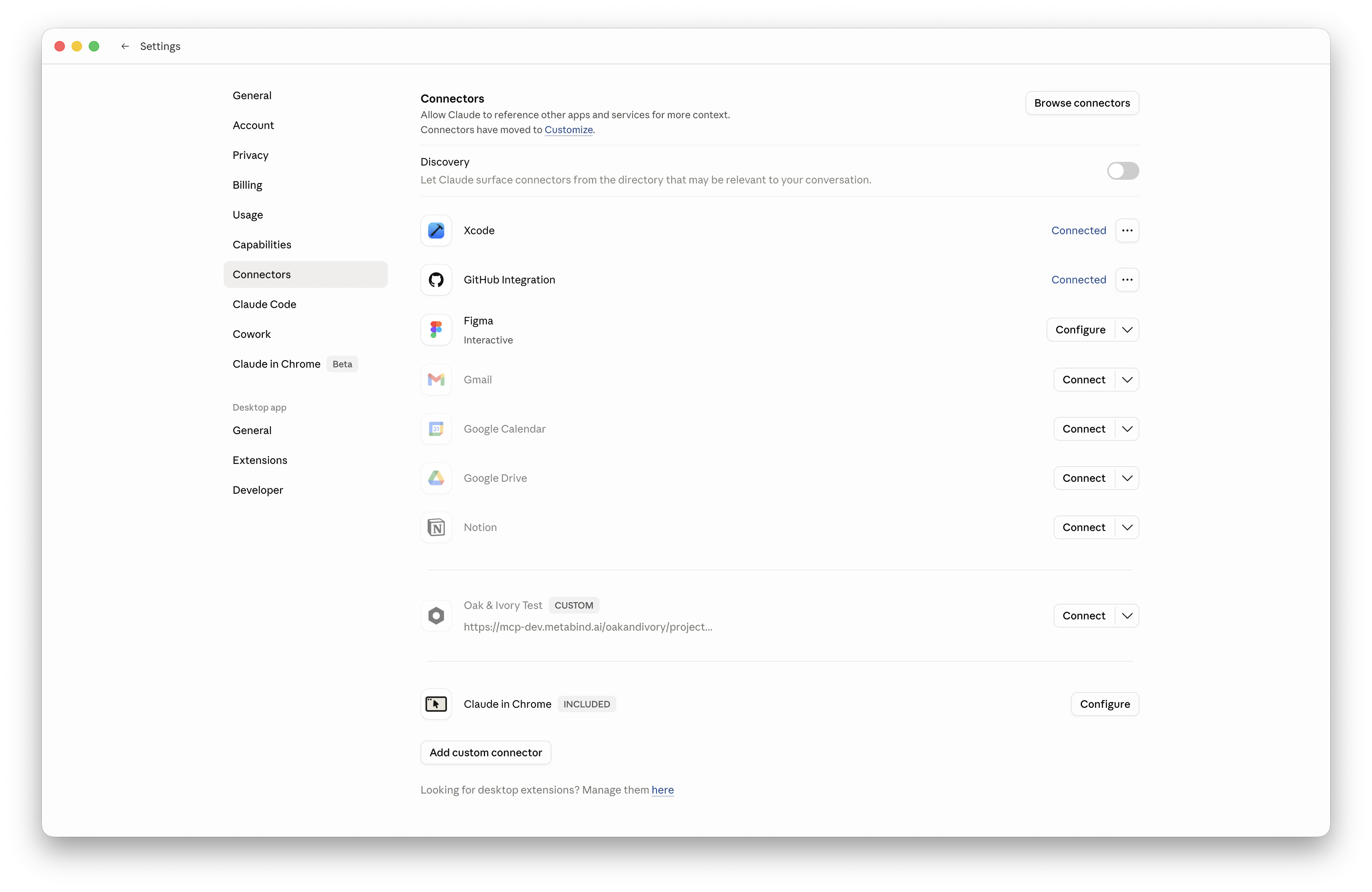
- Open Claude → Settings → Connectors.
- Scroll to Add custom connector, paste the URL from Metabind Studio, and click Add.
- The new connector appears with a Connect button. Click it.
Verify the connection
In Claude Desktop, open a new conversation and check the connectors list (the icon in the message composer). The Metabind project name should appear with a green status dot. If it shows red, click for the error — usually an expired session or revoked authorization. Once green, ask Claude to use one of your tools:Switching between draft and production
Add each as a separate custom connector — paste the draft URL, authorize; paste the production URL, authorize. Claude Desktop lists them side-by-side. You can have one or both enabled. For day-to-day:- Building? Enable draft, disable production. Conversations route to your latest draft state.
- Testing publish behavior? Disable draft, enable production. You’re seeing what end users see.
- Both? Claude Desktop lists tools from both, and the AI may call either. Useful for A/B-style comparisons but confusing if tool names overlap.
Authorization management
OAuth grants are issued and revoked in two places:- Claude Desktop side. Disconnect the connector in Settings → Connectors to drop the local token. Re-authorize whenever you want it back.
- Metabind side. Open Settings → Authorized apps in Metabind Studio (organization scope) to see every active OAuth grant and revoke any of them. Revocation takes effect on the next request — Claude Desktop’s connector will flip to a failed state until the user re-authorizes.
What end users see
When an end user adds your project to Claude Desktop:- They paste the project URL into Claude → Settings → Connectors → Add custom connector.
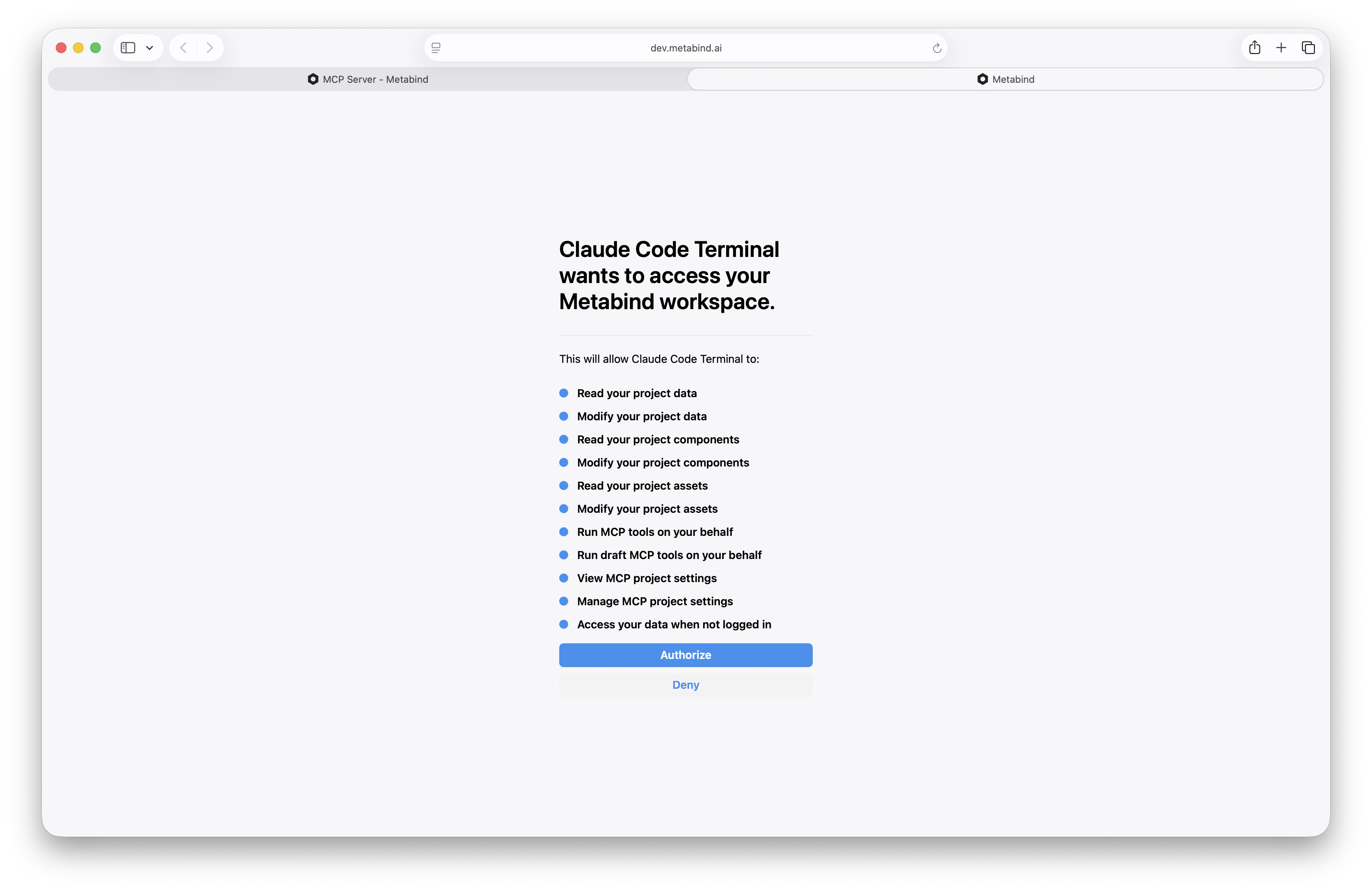
- Claude Desktop opens the Metabind OAuth page.
- They sign in to Metabind (or sign up, if invited) and click Authorize.
- Your project’s tools and Instructions appear in their available tool palette.
Troubleshooting
For deeper debugging, every call appears in the project’s audit log with timestamp, input, output, and error.
Related
Connect to ChatGPT
Same OAuth flow, different host.
Custom MCP hosts
Connect any MCP-compatible client.
Draft and production
Why two endpoints exist and when to use each.
Audit logs
Per-call observability for debugging.