

Prerequisites
- A Metabind project with at least one Interactive Tool that has no required inputs. ChatGPT opens entrypoints without arguments, so this is the tool users will see first. See Interactive Tools.
- Permission to change the project’s MCP server settings. Organization admins have it, and so does any role that can update MCP settings. Members without it can open the card in read-only mode with View.
- A ChatGPT account you can add custom MCP servers to, for testing. See Connect to ChatGPT.
- To submit to the directory, a verified developer organization on the OpenAI Platform.
How ChatGPT opens your app
A plugin can appear in ChatGPT in three ways. You choose which in Metabind Studio:
Entrypoints open with empty arguments, without the model calling the tool. That’s why an entrypoint tool can’t have required inputs.
Design entrypoint components to render well with no inputs at all. Property default values aren’t applied when ChatGPT opens an entrypoint, so give any text or images the component needs a fallback in the component code itself.
Open the ChatGPT Plugin card
- Open the project in Metabind Studio.
- On the Server tab, find the ChatGPT Plugin card below the server URL.
- Click Configure.
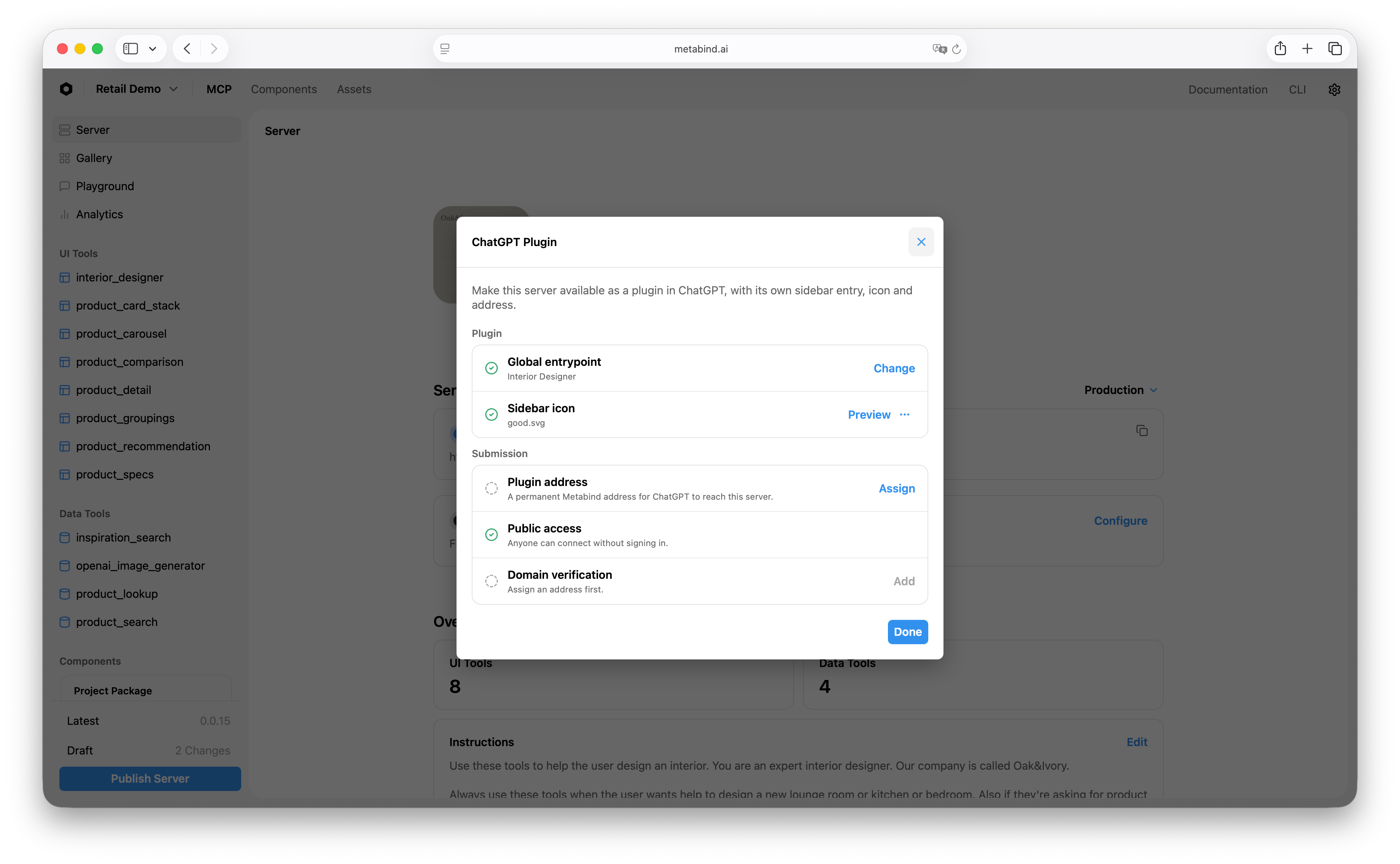
Choose a global entrypoint
The global entrypoint is the Interactive Tool users open from the ChatGPT sidebar, such as a home screen, a catalog, or a dashboard.- Next to Global entrypoint, click Choose.
- Pick a tool under Available. Tools under Has Required Inputs can’t be entrypoints until you make those inputs optional.
Add thread entrypoints and display modes
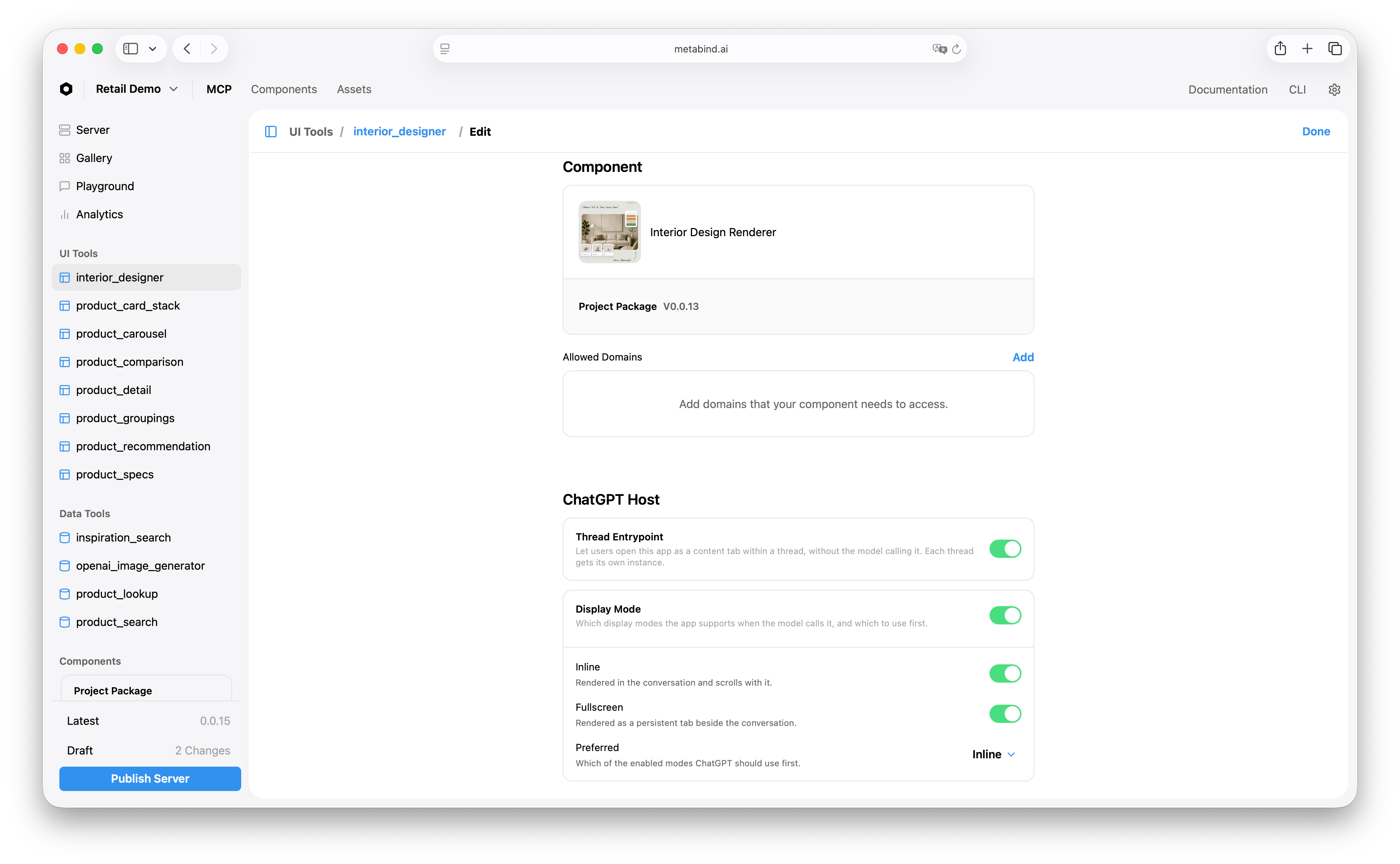
These settings are per tool, and both are optional. Open an Interactive Tool (listed under UI Tools in the Studio sidebar), click Edit, and scroll to ChatGPT Host:- Thread Entrypoint lets users open the tool as a tab in a conversation without the model calling it. Each conversation gets its own instance. Turn it on for as many tools as you like, as long as none of them has required inputs.
- Display Mode sets where the view appears when the model calls the tool. Turn it on, then enable Inline (in the conversation, scrolling with it), Fullscreen (a persistent tab beside the conversation), or both, then set Preferred to the one ChatGPT should use first.
Add a sidebar icon
ChatGPT draws an entrypoint with the sidebar icon when the entrypoint’s tool has no icon of its own. In the ChatGPT Plugin dialog, click Choose next to Sidebar icon and pick an image from your project’s assets. The icon must be:- An SVG. Raster images show a Not an SVG badge and may render blurry or in the wrong color.
- Monochrome, drawn with
currentColorso it can follow the user’s theme. ChatGPT’s desktop app recolors it for light and dark mode. The iOS app in dark mode currently draws it near-black, so it’s hard to see there. - On a transparent background, with a 20×20 viewport and 1.33px strokes.
Declare Data Tool annotations
ChatGPT needs every tool to say what it does to the world, and the card’s readiness check requires it. For each Data Tool, open its settings and set each of these deliberately:- Read Only: the tool doesn’t change anything.
- Destructive: the tool may delete or overwrite data.
- Open-World: the tool reaches external or third-party services.
- Turn Open-World on, then off, or leave it on if the tool calls external services.
- Turn Read Only off, so the Destructive switch appears.
- Turn Destructive on, then off.
- Turn Read Only back on, then click Done.
Make the project public
ChatGPT users can’t sign in to a private project, so a plugin’s server must be public.- Click the gear icon at the top right (Project Settings), and choose General.
- Under Access, click Change and choose Public.
- Confirm with I understand the impact.
Assign a plugin address
A plugin gets its own permanent address, separate from the sharedmcp.metabind.ai URL, so ChatGPT always reaches it at the same origin.
In the ChatGPT Plugin dialog, click Assign next to Plugin address. The address is built from your project and organization slugs:
banking in organization acme gets https://banking-acme.mcp.metabind.ai/. Click the copy button to copy it.
The project slug is the Identifier you set when you created the project. The combined <project-slug>-<organization-slug> must be 63 characters or fewer, and it can’t match an address that another project has reserved. If either rule fails, Metabind doesn’t assign an address.
The production URL keeps working after you assign the address. Both serve the same tools, but only the plugin address gives your views their own origin: its UI resources declare it as their widget domain, which OpenAI requires to submit a plugin with UI. Views opened through the production URL use ChatGPT’s default sandbox origin.
Publish the server
The global entrypoint, thread entrypoints, and display modes are saved as part of each tool, so ChatGPT sees them only after you publish. If your components changed, click Publish Components at the bottom of the Components sidebar. Then click Publish Server at the bottom of the MCP sidebar. See Publish the MCP server.Test the plugin in ChatGPT
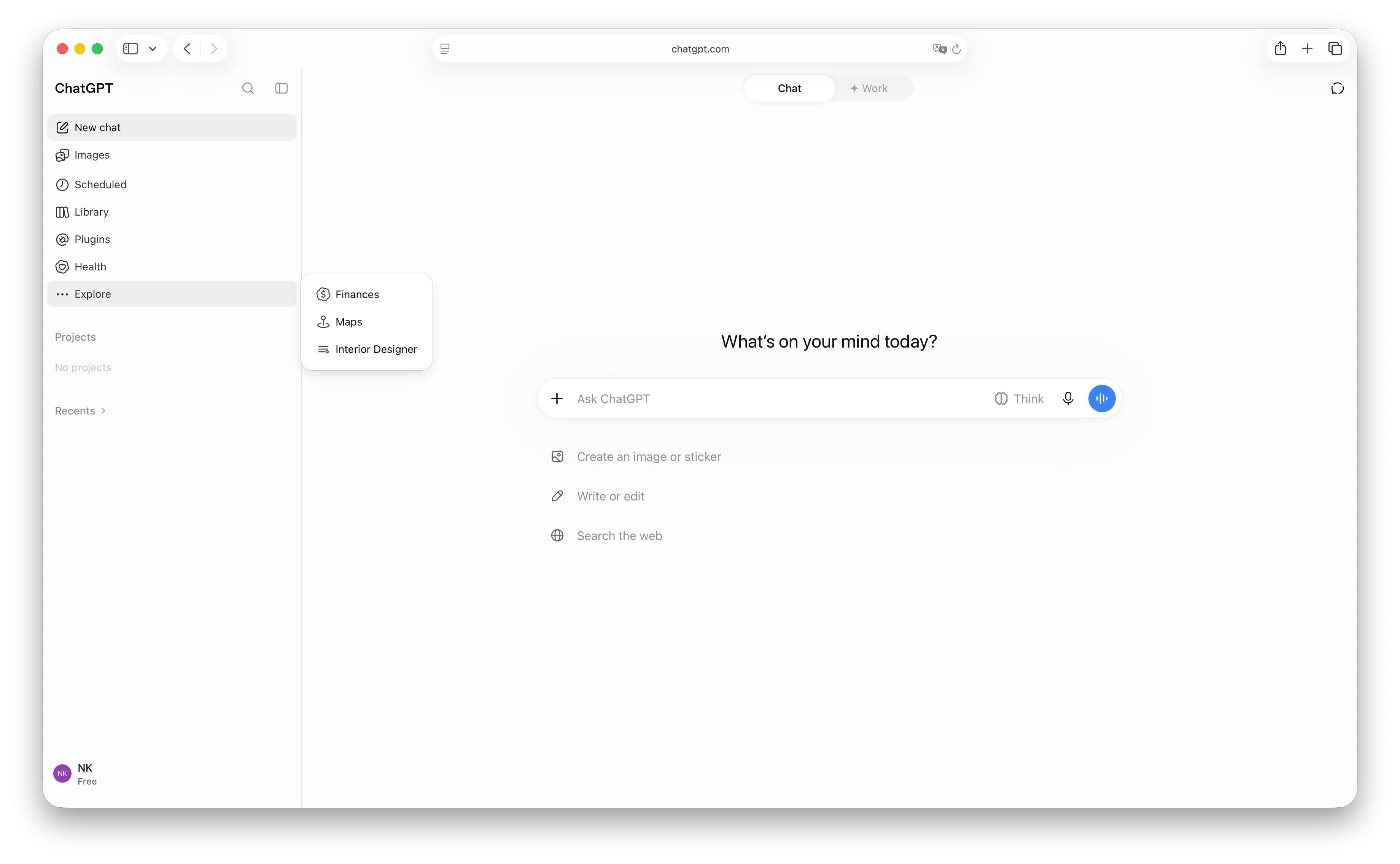
Add the plugin to your own ChatGPT account the way you would any project: follow Connect to ChatGPT, paste the plugin address as the Server URL, and choose No authentication. If you haven’t assigned a plugin address yet, you can test with the project’s production URL instead. Then check each way the app opens:- Global entrypoint. In the sidebar, open Explore on chatgpt.com and in the iOS and Android apps, or More in the desktop app. Your entrypoint is listed by its title, with your sidebar icon. Choosing it opens the view full-page.
- Thread entrypoint. In a conversation on chatgpt.com, open the conversation’s ⋯ menu and choose Plugins. In the desktop app, open a new tab in the side panel, then choose Tools → More tools…; your thread entrypoints are listed under Plugins and MCPs. Choosing one opens the view in the side panel.
- Model call. Ask ChatGPT to use the app. The view opens in its preferred display mode.
Verify your domain and submit
To list your plugin in ChatGPT’s directory, submit it on the OpenAI Platform. OpenAI checks that you control the plugin address by fetching a token from it, and Metabind serves that token for you.Build the plugin package
OpenAI takes a plugin as a ZIP file. Metabind doesn’t generate it, so create one with two files at its root:plugin.json: the plugin’s name, version, and listing details, such as its display name, descriptions, developer name, and category.mcp.json: your server, using the plugin address with no authentication.
mcp.json
plugin.json field, see OpenAI’s submission guide. Before review, OpenAI also requires website, support, privacy policy, and terms of service URLs and an app icon. If any are missing, the uploaded plugin lists them under Findings.
Verify the domain
- On the OpenAI Platform, open Plugins and upload the ZIP.
- In the uploaded plugin, open the MCPs tab and click Connect. OpenAI shows a verification token.
- In Metabind Studio, in the ChatGPT Plugin dialog, click Add next to Domain verification.
- Paste the token into Verification Token and click Save.
- Return to OpenAI and finish connecting. The server shows Domain verified and lists your published tools.
<plugin address>/.well-known/openai-apps-challenge, shown under Served At. To rotate the token, click Edit; to stop serving it, click Remove.
Submit for review
When every step is done and the checks pass, the ChatGPT Plugin dialog shows All set. Ready to submit as a ChatGPT plugin. After you connect the MCP server on OpenAI’s side, OpenAI scans your tools and lists anything to fix under Findings, such as a tool with no description. Finish the rest of the submission on OpenAI’s side, including listing details, test cases, and review, by following OpenAI’s submission guide and plugin guidelines.Ready means your Metabind server meets the checks below. It doesn’t guarantee OpenAI’s approval, which follows OpenAI’s own requirements and timeline.
Troubleshooting
When the card shows Needs attention, the dialog lists what’s missing. Each message maps to a fix:
Other problems:
Related
Connect to ChatGPT
Add a project to your own ChatGPT as a custom MCP server.
Interactive Tools
Build the views your entrypoints open.
Publish the MCP server
What publishing does and when changes go live.
Project visibility
Public and private access, and what each allows.
OpenAI plugin submission
OpenAI’s guide to uploading, reviewing, and publishing a plugin.